
 Client area
Manage players on your Minecraft server: OP, whitelist and bans
The Players page in OuiPanel, the OuiHeberg game panel, lets you manage the players on your Minecraft Java server: operator rights, kicks, bans and the whitelist. This guide shows these actions in the panel. It also gives the console commands that do the same thing, even when the player isn't online.
| Action | Effect |
|---|---|
| OP | Grants operator (admin) rights |
| DEOP | Removes operator rights |
| Kick | Disconnects the player from the server |
| Ban | Bars the player from the server, with an option to ban their IP |
| Whitelist / Remove from whitelist | Adds the player to the whitelist or removes them |
Open the Players page
Log in to OuiPanel at dash.ouipanel.com and open your Minecraft server.
In the side menu, click Players.
The Server Information card shows the Connected Players out of the maximum, for example 0 / 20. Below it, the list shows online players with their action buttons. With nobody online, it reads "No players connected at this time.".
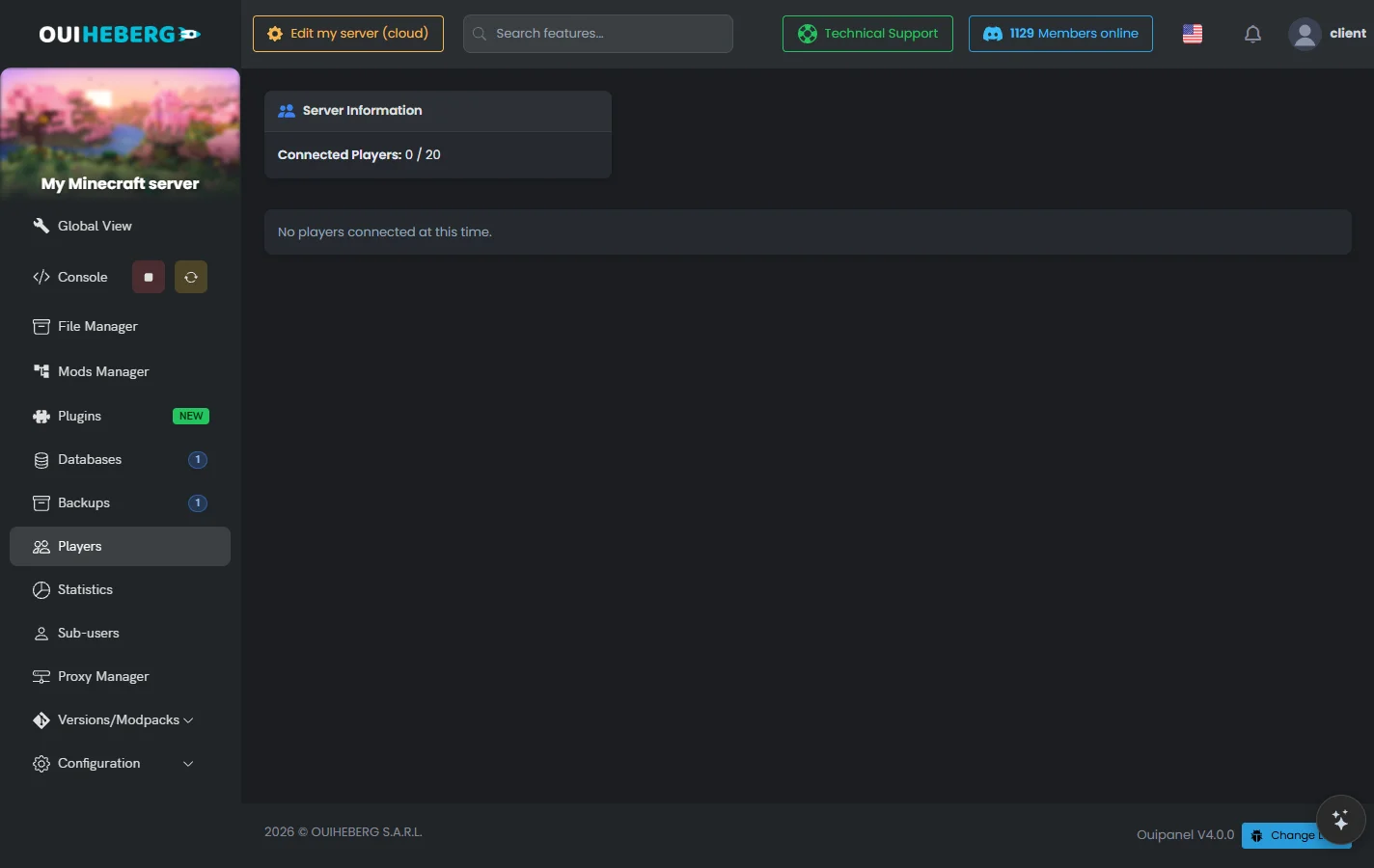
The Players page exists on Minecraft Java servers, not on Bedrock. Its buttons only work while the server is running, and only for connected players. For an offline player, use the console.
Grant operator rights (OP)
An operator (OP) has full rights on the server, such as admin commands, creative mode or teleporting.
From the Players page
On the Players page, find the connected player.
Click OP next to their name.
The panel confirms that the player is now OP on the server.
From the console
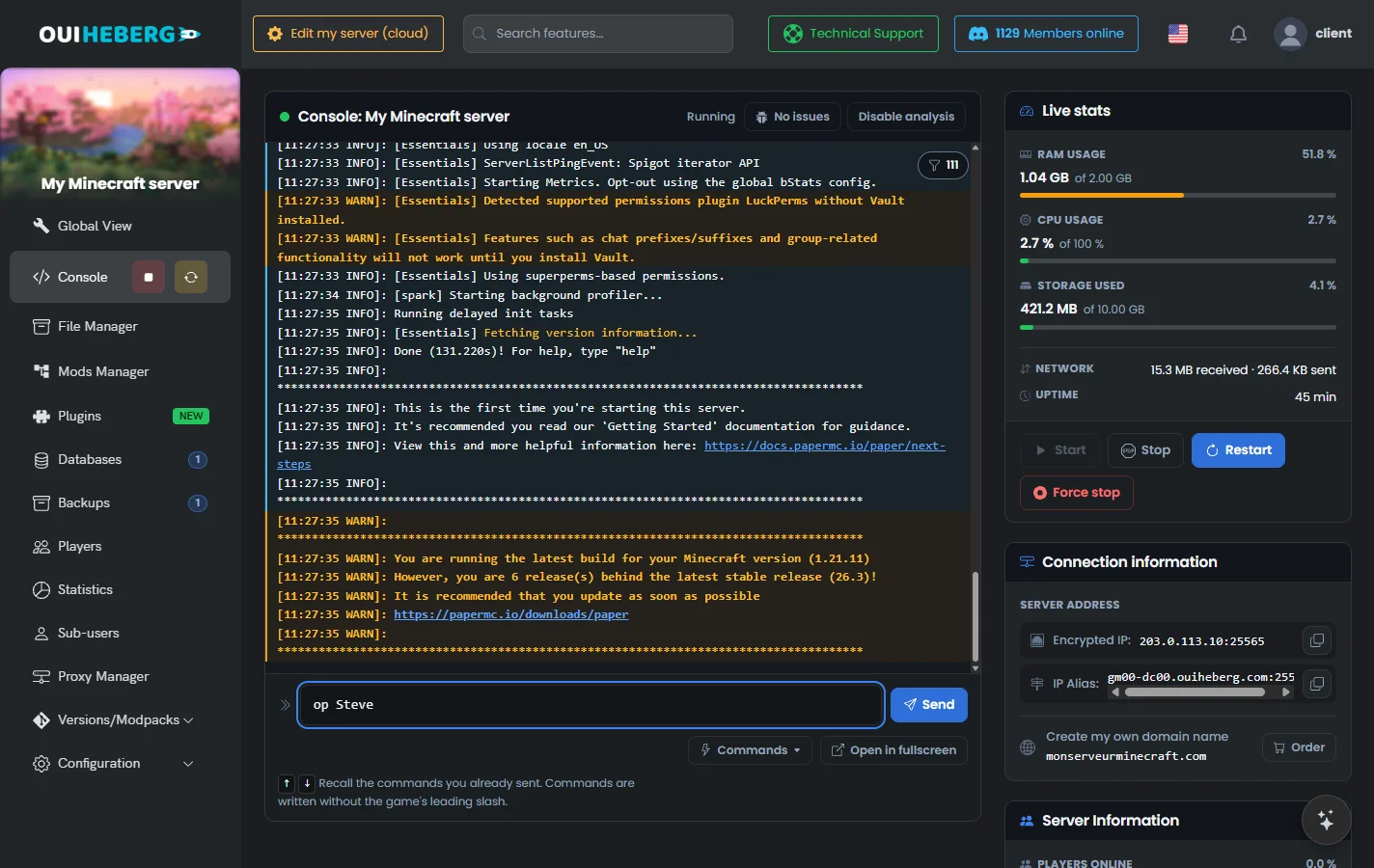
In the side menu, click Console.
Type
op PlayerName, without the slash, then click Send.
The command works even if the player isn't online. Here are three examples.
op Steve
op Alex
op MyFriend123
Remove operator rights (DEOP)
On the Players page, click DEOP next to the operator. In the console, the command is deop PlayerName.
deop Steve
Kick a player
A kick disconnects a player straight away. They can reconnect right after.
On the Players page, click Kick next to the player. The kick is immediate, with no reason.
To give a reason, use the console with
kick PlayerName [reason].
kick Steve
kick Alex Inappropriate behaviour
kick Griefer123 Destroying the spawn
The player sees the reason on their disconnection screen.
Ban a player
A ban bars the player from joining the server. Unlike a kick, they can't reconnect.
From the Players page
On the Players page, click Ban next to the player.
In the window, fill in the options from the table below.
Click Ban.
| Option | Description |
|---|---|
| Reason | Message shown to the banned player, optional |
| Ban IP | Also bans their IP address, against alternate accounts |
From the console
To ban a player, type ban PlayerName [reason]. To ban an address, type ban-ip IPAddress [reason].
ban Griefer123 Griefing the spawn
ban Steve Confirmed cheating
ban-ip 192.168.1.100 Banned alt account
Unban a player
Unbanning (pardon) is done in the console, with pardon PlayerName for a player and pardon-ip IPAddress for an address.
pardon Steve
pardon-ip 192.168.1.100
These two commands list banned players, then banned IPs.
banlist
banlist ips
Manage the whitelist
The whitelist limits access to the server to authorised players only.
Turn the whitelist on or off
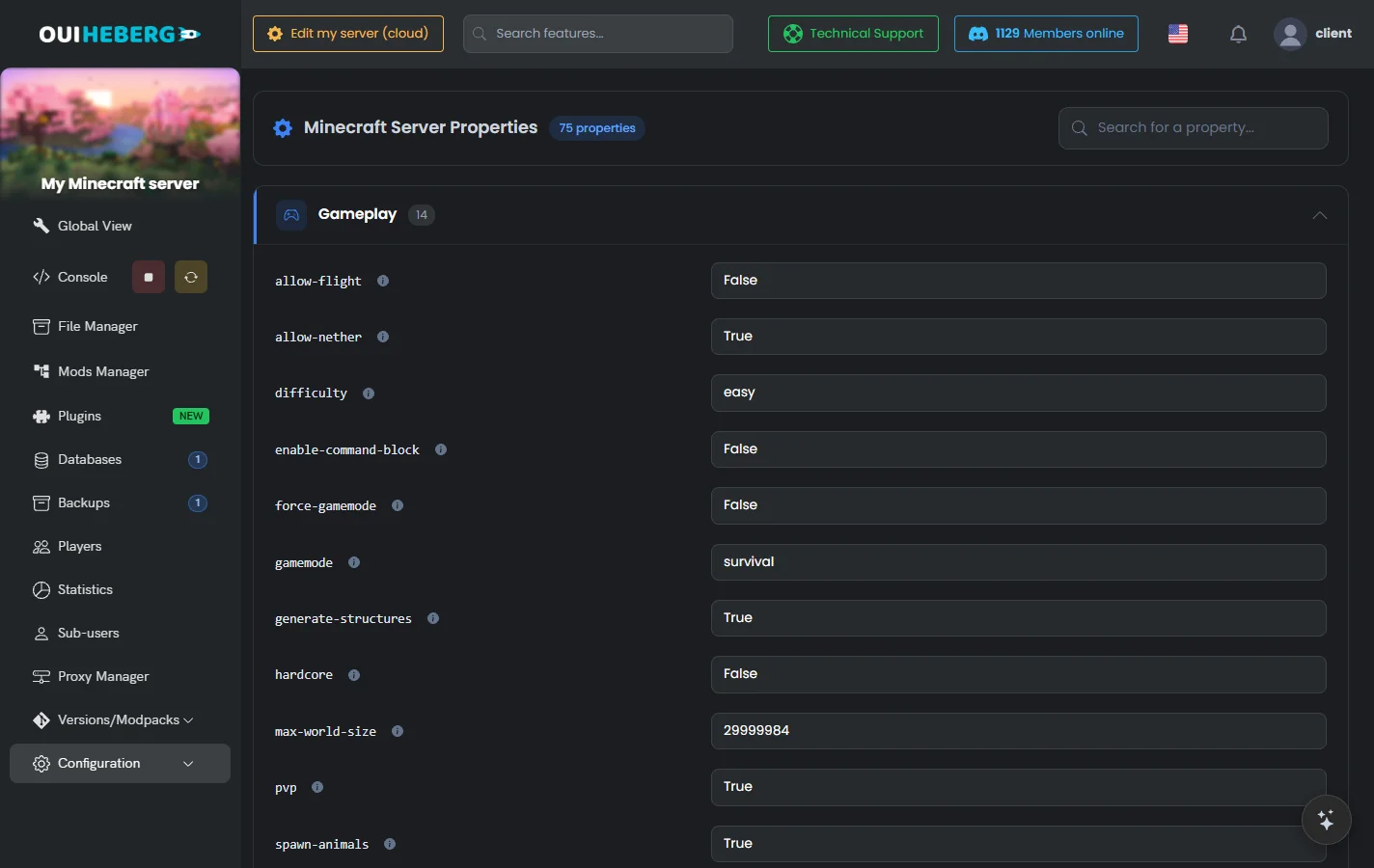
The easiest way is the Properties Editor.
Open Configuration › Properties Editor.
In Search for a property..., type
white-list.Choose True to turn it on, False to turn it off. The panel saves on its own and shows "Property "white-list" saved.".
Restart the server to apply the change.
You can also edit the server.properties file. In the File Manager, click the file, set the line below to true, click Save, then restart the server.
white-list=true
In the console, these two commands turn the whitelist on, then off.
whitelist on
whitelist off
Add a player to the whitelist
On the Players page, click Whitelist next to a connected player. In the console, whitelist add PlayerName also works for a player who isn't online.
whitelist add Steve
whitelist add Alex
whitelist add MyFriend123
Remove a player from the whitelist
On the Players page, click Remove from whitelist. In the console, the command is whitelist remove PlayerName.
whitelist remove Steve
View and reload the whitelist
The first command lists every authorised player. The second reloads the whitelist.json file after a manual edit.
whitelist list
whitelist reload
Use other player commands
These commands are also typed in the console, without the slash. The guide +150 Minecraft Commands: Ultimate Java and Bedrock Guide covers many more.
Change a player's game mode
gamemode survival PlayerName
gamemode creative PlayerName
gamemode adventure PlayerName
gamemode spectator PlayerName
Numbers work as shortcuts.
gamemode 0 PlayerName    (Survival)
gamemode 1 PlayerName    (Creative)
gamemode 2 PlayerName    (Adventure)
gamemode 3 PlayerName    (Spectator)
Teleport a player
The command sends a player to coordinates or to another player.
tp PlayerName X Y Z
tp PlayerName OtherPlayer
tp Steve 100 64 -200
tp Alex Steve
Give an item
The command is give PlayerName minecraft:item [quantity].
give Steve minecraft:diamond 64
give Alex minecraft:netherite_sword 1
give Steve minecraft:golden_apple 10
Send a message
tell and msg send a private message. say writes to every player.
tell PlayerName Message
msg PlayerName Message
say Message for all players
tell Steve Welcome to the server!
say The server restarts in 5 minutes!
Edit the player files
Minecraft keeps these lists in JSON files, at the root of the server.
| File | Content |
|---|---|
ops.json | Operator list |
whitelist.json | Whitelist |
banned-players.json | Banned players |
banned-ips.json | Banned IPs |
Here is an example of an ops.json file.
[
  {
    "uuid": "xxxxxxxx-xxxx-xxxx-xxxx-xxxxxxxxxxxx",
    "name": "Steve",
    "level": 4,
    "bypassesPlayerLimit": false
  }
]
The operator level (
level) runs from 1, which only bypasses spawn protection, to 4, which grants every right.
To edit one of these files by hand:
Stop the server.
In the File Manager, click the JSON file, edit it, then click Save.
Restart the server. For the whitelist alone, the
whitelist reloadcommand is enough.
Troubleshooting
No players appear in the list
| Cause | Solution |
|---|---|
| No players connected | The list only shows online players. |
| Server offline | Start your server. |
| List out of date | Refresh the page. |
A player can't join because of the whitelist
| Cause | Solution |
|---|---|
| Whitelist on | Add the player with whitelist add PlayerName. |
| Misspelled username | Check the exact spelling, capitals included. |
| Whitelist not reloaded | Type whitelist reload. |
A banned player can still join
| Cause | Solution |
|---|---|
| Another account | Ban their IP as well. |
| VPN | Hard to block. Use an anti-VPN plugin. |
| Wrong username banned | Check with banlist. |
The OP command doesn't work
| Cause | Solution |
|---|---|
| Misspelled username | Respect upper and lower case. |
| Server in offline mode | The player needs a valid Minecraft account. |
Need help?
Open a ticket from Tickets › Open a Ticket, or from the Contact support tile at the bottom of your server's page in the client area. You can also ask your question on the OuiHeberg Discord.
Discover our Minecraft hosting plans starting from $2.28/month with automatic mod installation.
Minecraft server hosting →