
 Client area
How to add your business email to iPhone or Outlook
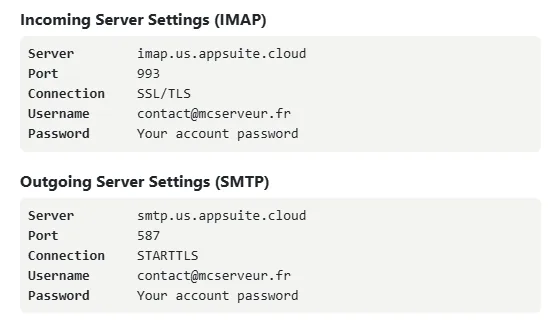
Your business email from the OuiHeberg professional email plan also works in the iPhone Mail app, in Outlook, in Thunderbird and in any IMAP email app. To add it, you need the right servers, ports and login details. This guide lists them, then shows the QR code method for an iPhone or iPad.
IMAP, POP3 and SMTP settings
| Use | Server | Port | Encryption |
|---|---|---|---|
| Incoming IMAP | imap.us.appsuite.cloud | 993 | SSL/TLS |
| Incoming POP3 | pop.us.appsuite.cloud | 995 | SSL/TLS |
| Outgoing SMTP | smtp.us.appsuite.cloud | 587 | STARTTLS |
| Outgoing SMTP, other port | smtp.us.appsuite.cloud | 465 | SSL/TLS |
The username is the full mailbox address, such as contact@your-domain.com, for both incoming and outgoing mail. The password is the mailbox password. Turn on authentication for the outgoing server with the same login details.
Choose IMAP when you can. Your folders and messages then stay in sync between the webmail, your phone and your computer. POP3 downloads messages to the device without syncing folders.
The password to enter is the mailbox password, chosen when you created it in the client area. It is not your OuiHeberg account password.
The webmail shows these settings too. Click the Settings gear, then Connect your device … and Configure a specific device or application. Pick iPhone or iPad, then Mail and Show manual configuration options.
Set up an iPhone or iPad with a QR code
The webmail prepares a configuration profile for the Apple Mail app. Open it on a computer, with your iPhone close at hand.
In the webmail, click the Settings gear, then Connect your device ….
Click Configure a specific device or application, then iPhone or iPad.
Choose Mail. To add your contacts and calendar as well, choose Mail, Address Book (CardDav) & Calendar (CalDav).
Scan the QR code with the iPhone camera, then download the profile.
Open the iPhone Settings app and install the downloaded profile.
Once the profile is installed, the mailbox appears in the Mail app. Without the QR code, add an email account by hand with the settings from the table.
Set up Outlook, Thunderbird or an Android phone
Add an email account with your full address.
If the app does not find the settings on its own, switch to manual setup and choose IMAP.
Enter the servers, ports and encryption from the table, first for incoming mail, then for outgoing mail.
Enter the full address as the username and the mailbox password, then confirm.
In Outlook, you add the account from the account settings. In Thunderbird, choose to add an existing email account. On Android, use the email app you prefer, such as Gmail or Outlook.
If the connection fails
Check that the username is the full address, domain included.
Check the mailbox password. If it changed in the client area, enter the new one on every device.
For outgoing mail, use port
587with STARTTLS or port465with SSL/TLS, and turn on authentication.Emails from outside do not arrive? Check your MX records with the guide How to set up MX and SPF records for your email.
Need help?
Open a ticket from Tickets › Open a Ticket, or from the Contact support tile at the bottom of your service page. You can also ask your question on the OuiHeberg Discord.