
 Client area
How to set up MX and SPF records for your email
To receive email at your business address, your domain must publish MX records that point to our mail servers. An SPF record also states that these servers send on your behalf, which keeps your messages out of spam folders. This guide shows where to find the values for the OuiHeberg professional email plan, how to set up the MX and SPF records, and how to check them.
Find the values in the client area
Open My Services at dash.ouiheberg.com, then your professional email service, listed as Adresse mail professionnel.
In the left-hand menu, open the Configuration tab.
The DNS Records card lists what to add to your domain. It shows four MX records and one TXT record for SPF. The icon to the right of each line copies its value.
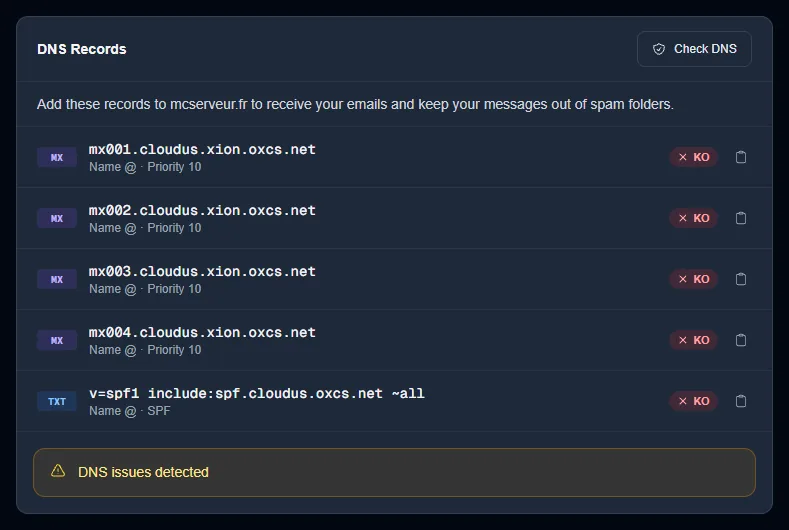
Here are the values shown for our mailboxes when this guide was written. If they differ, follow the ones in your Configuration tab.
| Type | Name | Value | Priority |
|---|---|---|---|
| MX | @ | mx001.cloudus.xion.oxcs.net | 10 |
| MX | @ | mx002.cloudus.xion.oxcs.net | 10 |
| MX | @ | mx003.cloudus.xion.oxcs.net | 10 |
| MX | @ | mx004.cloudus.xion.oxcs.net | 10 |
| TXT | @ | v=spf1 include:spf.cloudus.oxcs.net ~all |
The four MX records share the same priority. Add all four of them.
Add the records if your domain is with OuiHeberg
If your domain uses the OuiHeberg nameservers, you edit its DNS zone in the client area. The guide How to edit the DNS records of your domain walks through each screen.
Open My Services, select the Domains filter and click your domain.
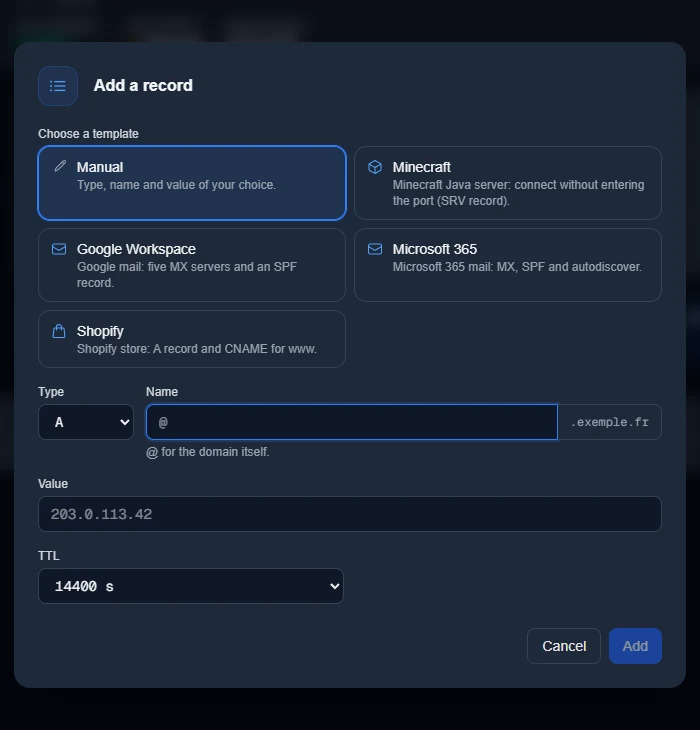
Click DNS zone, then Add. Keep the Manual template.
Pick the MX type, enter
@in Name, paste the first server into Value and set Priority to10. Click Add.Repeat for the other three MX servers.
Finally, add a TXT record with
@in Name and the SPF rule in Value.
Delete any old MX records that point to another email service. If they stay, your email may keep arriving there.
If the domain is linked to a web hosting plan, you edit its DNS zone with Expert Mode. The DNS zone guide explains how to turn it on.
Add the records with another DNS provider
Does your domain use another provider's nameservers, such as Cloudflare or your registrar? Add the same records in that provider's DNS settings. Create the four MX records with priority 10, then the SPF TXT record, always on the domain itself (@).
If your domain already has an SPF record
A domain must have only one SPF record. If a TXT record already starts with v=spf1, do not create a second one. Add include:spf.cloudus.oxcs.net to the existing record instead, before the final ~all. For example, with an SPF record that already allowed another service:
v=spf1 include:_spf.example.net include:spf.cloudus.oxcs.net ~allCheck your setup
Go back to the Configuration tab of the service.
Click Check DNS.
dash checks every line. A KO badge flags a missing or different record, with the message "DNS issues detected". Once everything is in place, the check shows "All DNS are correctly configured".
A DNS change usually propagates in under an hour, sometimes up to 48 hours depending on providers. If a line still shows KO right after your changes, run the check again later.
Need help?
Open a ticket from Tickets › Open a Ticket, or from the Contact support tile at the bottom of your service page. You can also ask your question on the OuiHeberg Discord.