
 Client area
How to create a business email address
A business email address uses your own domain name, such as contact@your-domain.com. With the OuiHeberg professional email plan, you create each mailbox yourself in the client area at dash.ouiheberg.com. You then read it in the OX App Suite webmail, on your phone or in Outlook. This guide assumes you have already ordered the plan with your domain.
Open the service page
Log in to dash.ouiheberg.com and open My Services.
Click your professional email service. It is listed as Adresse mail professionnel, next to your domain.
In the left-hand menu, open the Email accounts tab.
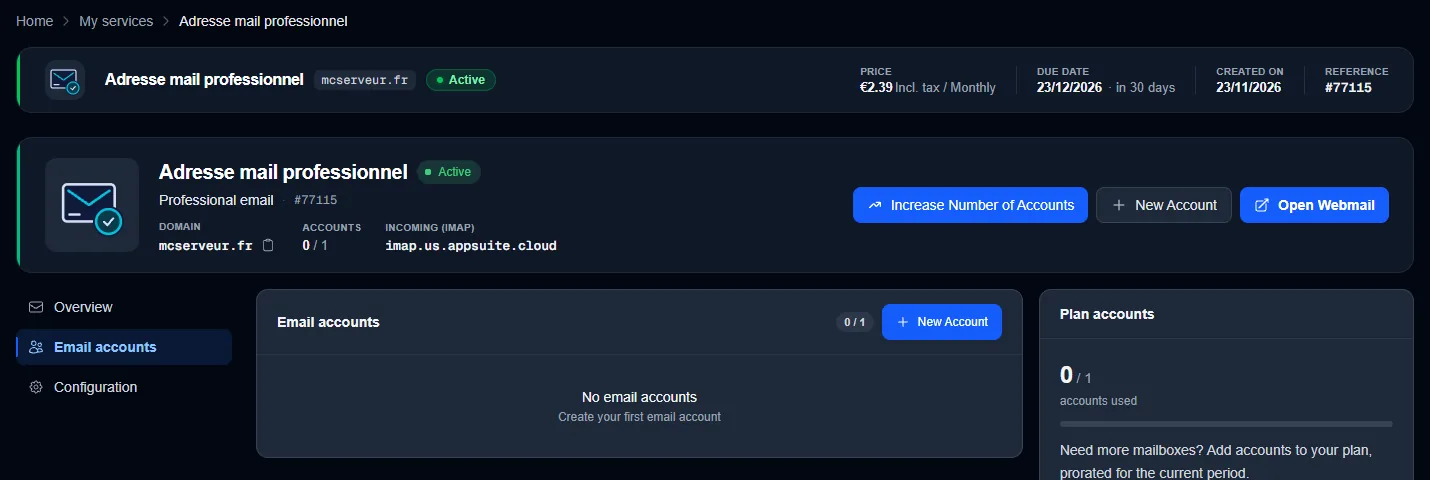
The page header shows the domain and how many mailboxes you use out of those in your plan, here 0 / 1. It also holds the New Account and Open Webmail buttons.
Create the mailbox
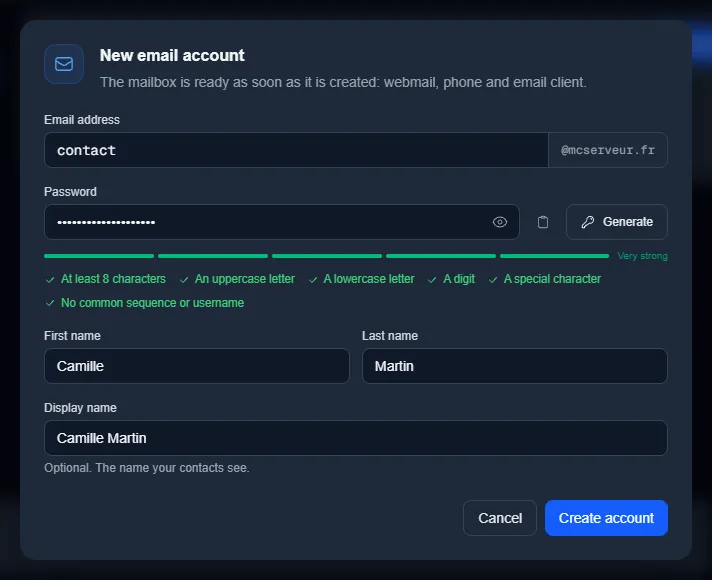
Click New Account. The New email account window opens.
In Email address, type the part before the @ sign, such as
contact. The domain is already added to the right of the field.Choose a Password, or click Generate to get a strong one. Write it down, you will need it on all your devices.
Fill in First name and Last name. The Display name is optional. It is the name your contacts see.
Click Create account.
Below the password, a meter checks six rules. You need at least 8 characters, an uppercase letter, a lowercase letter, a digit and a special character. The password must not contain the username or a common sequence.
dash confirms with a message. The mailbox then appears in the list with its 10 GB of storage and two buttons, Password and Delete.
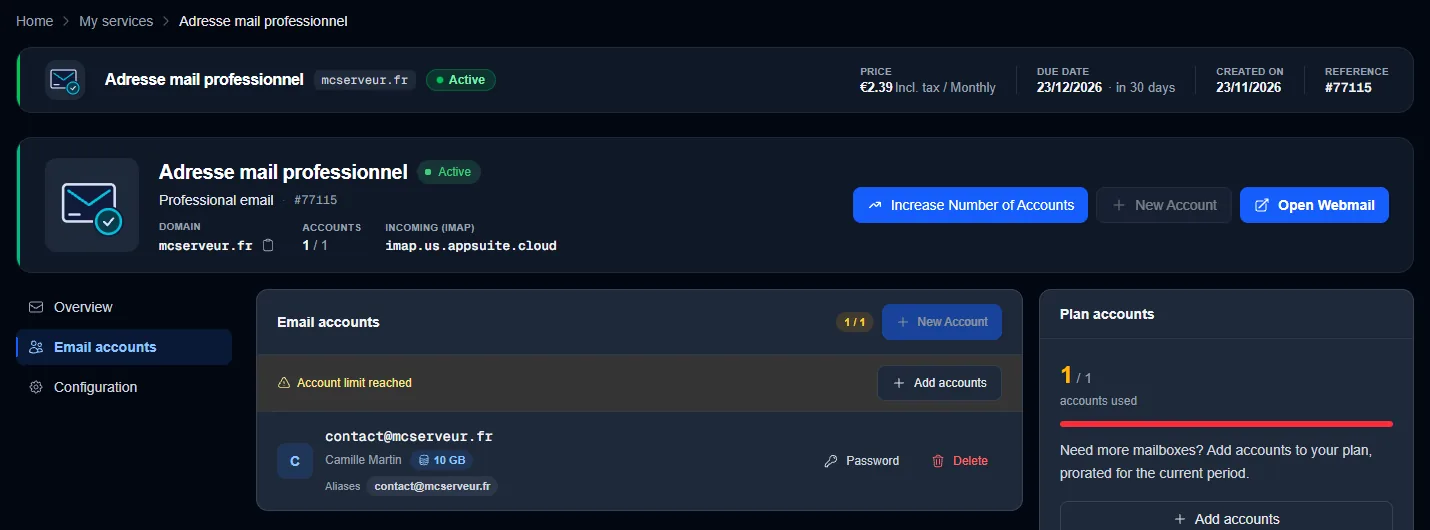
All the mailboxes in your plan are in use? The Add accounts button adds more to your plan, prorated for the current period.
Log in to the webmail
Click Open Webmail on the service page. You can also go straight to us.appsuite.cloud.
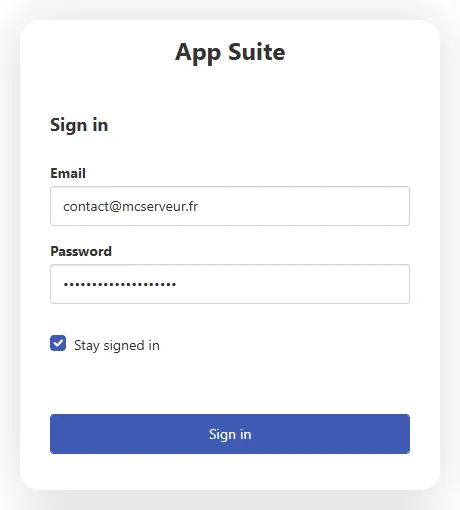
In Email, enter the full mailbox address, such as
contact@your-domain.com.Enter its Password, the one you chose when you created the mailbox.
Leave Stay signed in ticked on a personal computer, then click Sign in.
The first time you sign in, a welcome window offers a guided tour of the webmail. You can follow it or skip it. Your inbox then opens, with your folders on the left and the storage used out of 10 GB.
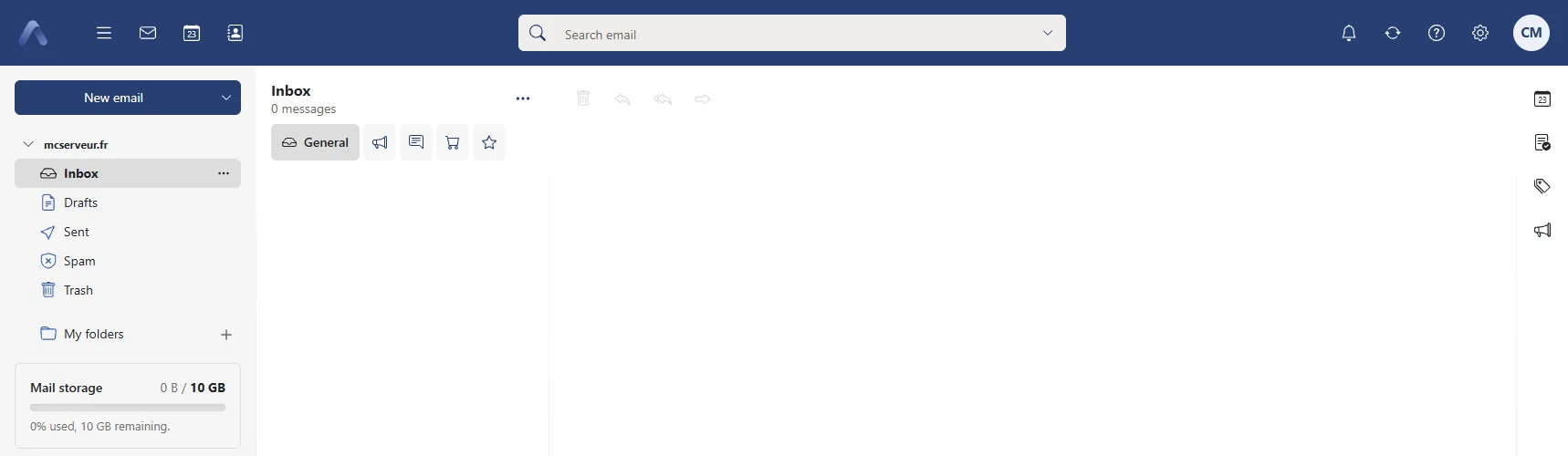
You choose the webmail language at the top right of the sign-in page. Once signed in, change it with the Settings gear › All settings › General › Language & Time zone.
Change a mailbox password
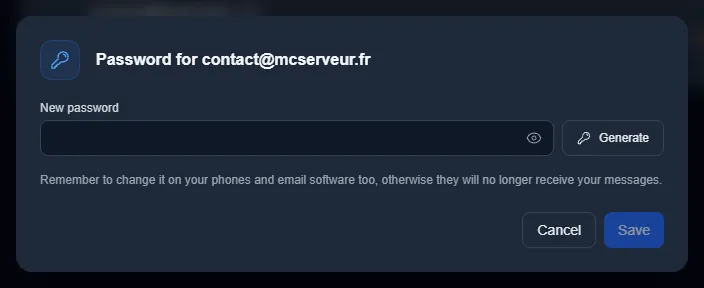
In the Email accounts tab, click Password to the right of the mailbox.
Enter the New password, or click Generate.
Click Save.
The new password works in the webmail right away. Change it on your phones and email apps too, otherwise they will stop receiving your messages.
Delete a mailbox
The Delete button in the list removes the mailbox. dash asks you to confirm first.
A deleted mailbox loses all its emails. This deletion cannot be undone.
Next steps
To receive email, your domain must point to our mail servers. Follow the guide How to set up MX and SPF records for your email. Two more guides can help you after that.
How to add your business email to iPhone or Outlook, to read your email on a phone or in an email app.
How to forward emails to another email address, to receive them somewhere else as well.
Is your mailbox part of a cPanel web hosting plan? It is managed in cPanel. See the guide Manage emails on cPanel.
Need help?
Open a ticket from Tickets › Open a Ticket, or from the Contact support tile at the bottom of your service page. You can also ask your question on the OuiHeberg Discord.