
 Client area
SCUM server settings: set up your server with ServerSettings.ini
SCUM server settings live in two places: the variables in OuiPanel and the ServerSettings.ini file, created the first time the server starts. That file holds every setting, from the password to PvP or PvE mode. This guide walks through each step in OuiPanel, the OuiHeberg game panel, up to the moment your players join. It assumes you already ordered a server from our SCUM server hosting plans.
Start your SCUM server for the first time
SCUM Server is the official server tool from Gamepires, published on Steam. It only exists for Windows. On our servers, it runs on Linux through Wine, a compatibility layer. You have nothing to install.
SCUM Server downloads without a Steam account and takes about 16.7 GB of disk space. You are not asked for any login.
Log in to OuiPanel at dash.ouipanel.com and open your SCUM server.
Open the Console, then click Start.
Wait until the console shows the Running state. The first start takes a few minutes, the time to download the game, then create the settings files and the world database.
The settings files only exist after this first start. They sit in the SCUM/Saved/Config/WindowsServer folder. The world is saved in SCUM/Saved/SaveFiles/SCUM.db.
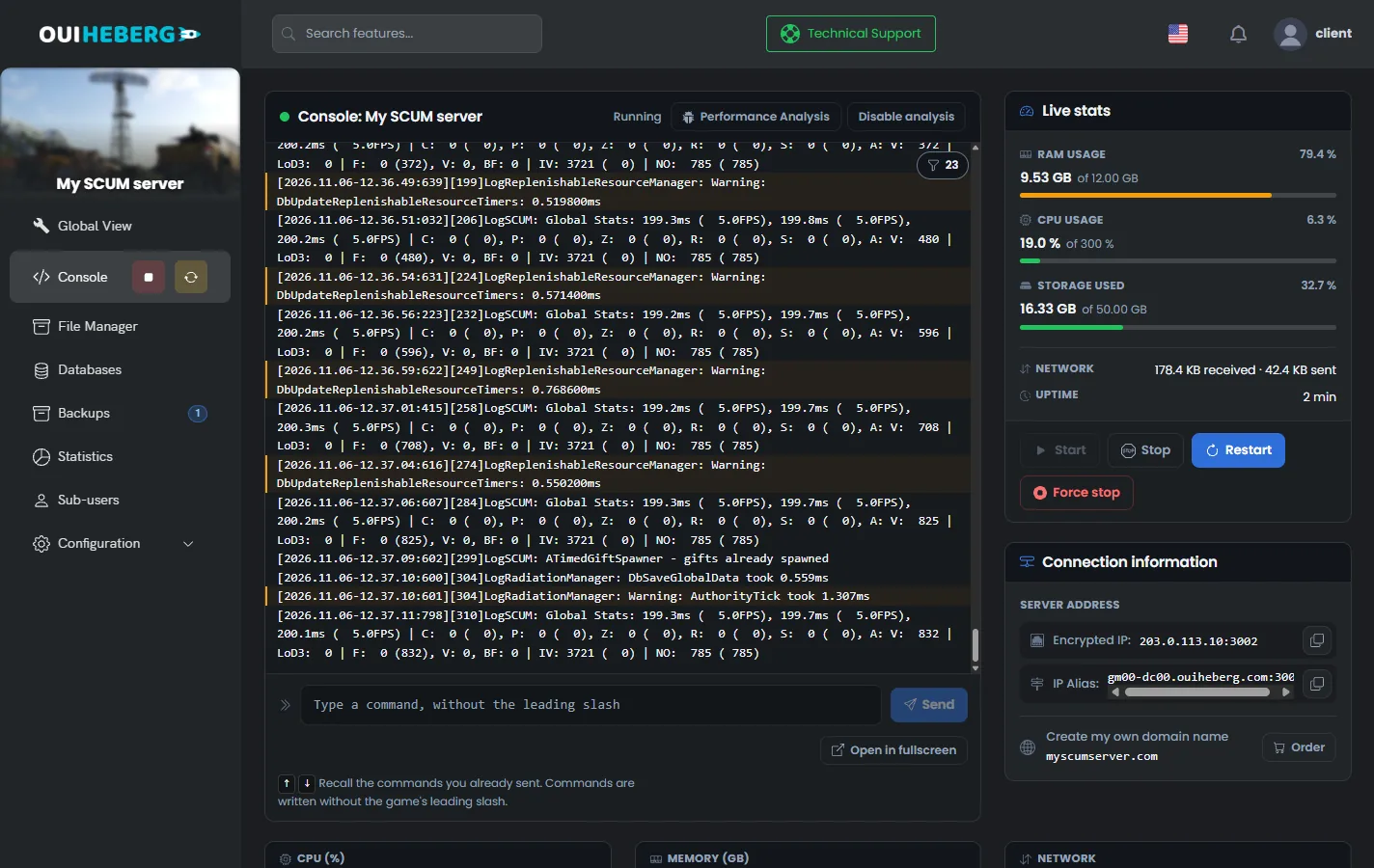
On our servers, the Stop button shuts SCUM down without its own shutdown routine. The world stays intact, since the game saves it continuously, but the very last player actions can be lost. Warn your players before you stop or restart the server.
Set the variables in OuiPanel
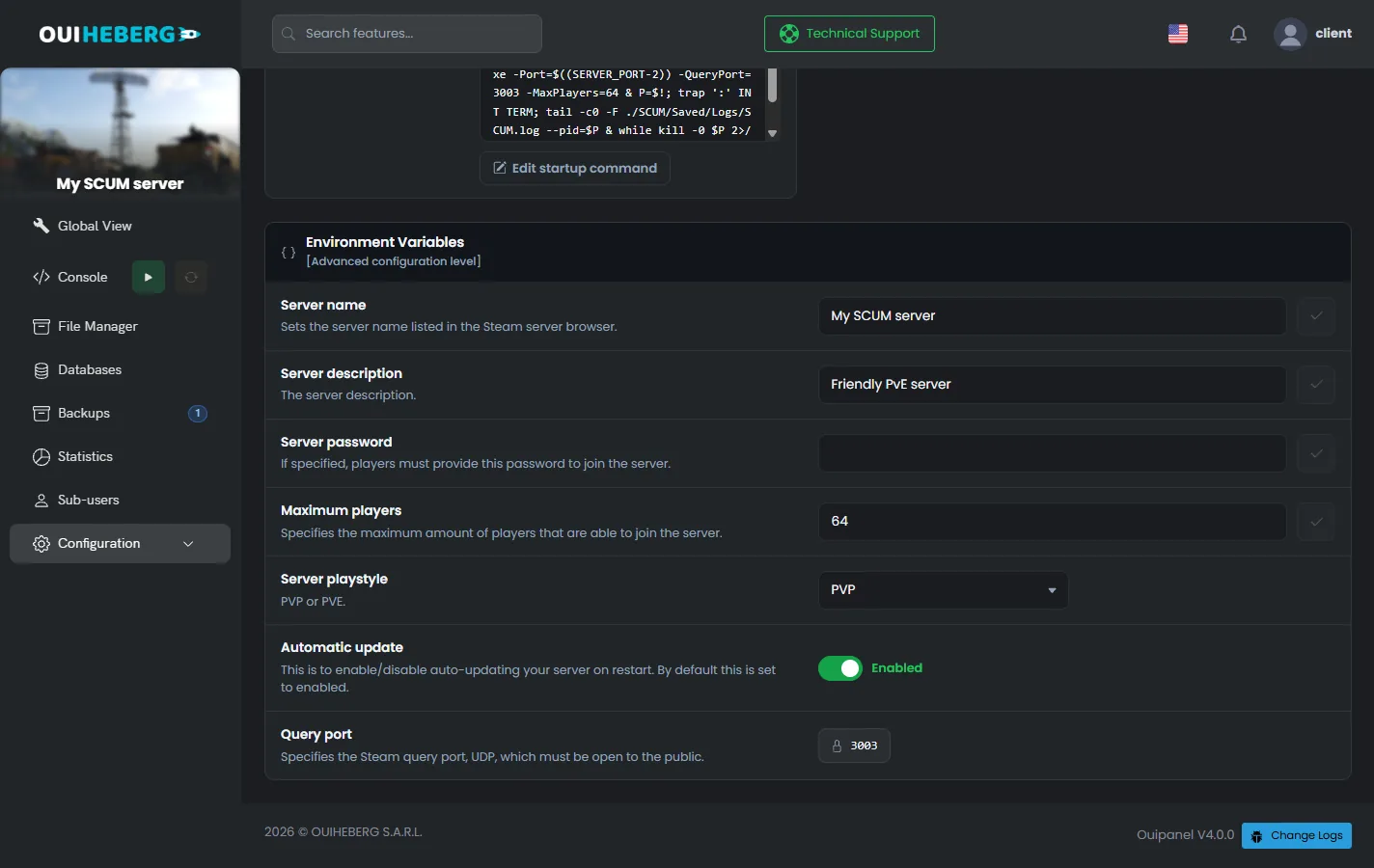
The settings read at startup are in Configuration › Server Settings, in the Environment Variables block. Confirm a field with the check mark on its right, then restart the server.
| Variable | Purpose |
|---|---|
Server name (SERVER_NAME) | Server name, written to ServerSettings.ini |
Server description (SERVER_DESCRIPTION) | Short text that presents the server |
Server password (SERVER_PASSWORD) | Password players must enter. Leave it empty for an open server |
Maximum players (MAX_PLAYERS) | Number of slots, 64 by default, from 1 to 128 |
Server playstyle (SERVER_PLAYSTYLE) | PVP or PVE, picked from the list |
Automatic update (AUTO_UPDATE) | Switch, on by default. It updates SCUM Server at each start |
Query port (QUERY_PORT) | Port assigned when the server is created. It cannot be changed |
Set the player count in the variable. OuiPanel passes it at startup with the -MaxPlayers option, which overrides the value in ServerSettings.ini.
Edit the ServerSettings.ini file
ServerSettings.ini holds all the server settings. Gamepires designed it so you can change them without joining the game.
In the Console, stop the server with Stop.
In the side menu, click File Manager, then open the
SCUM/Saved/Config/WindowsServerfolder.Click
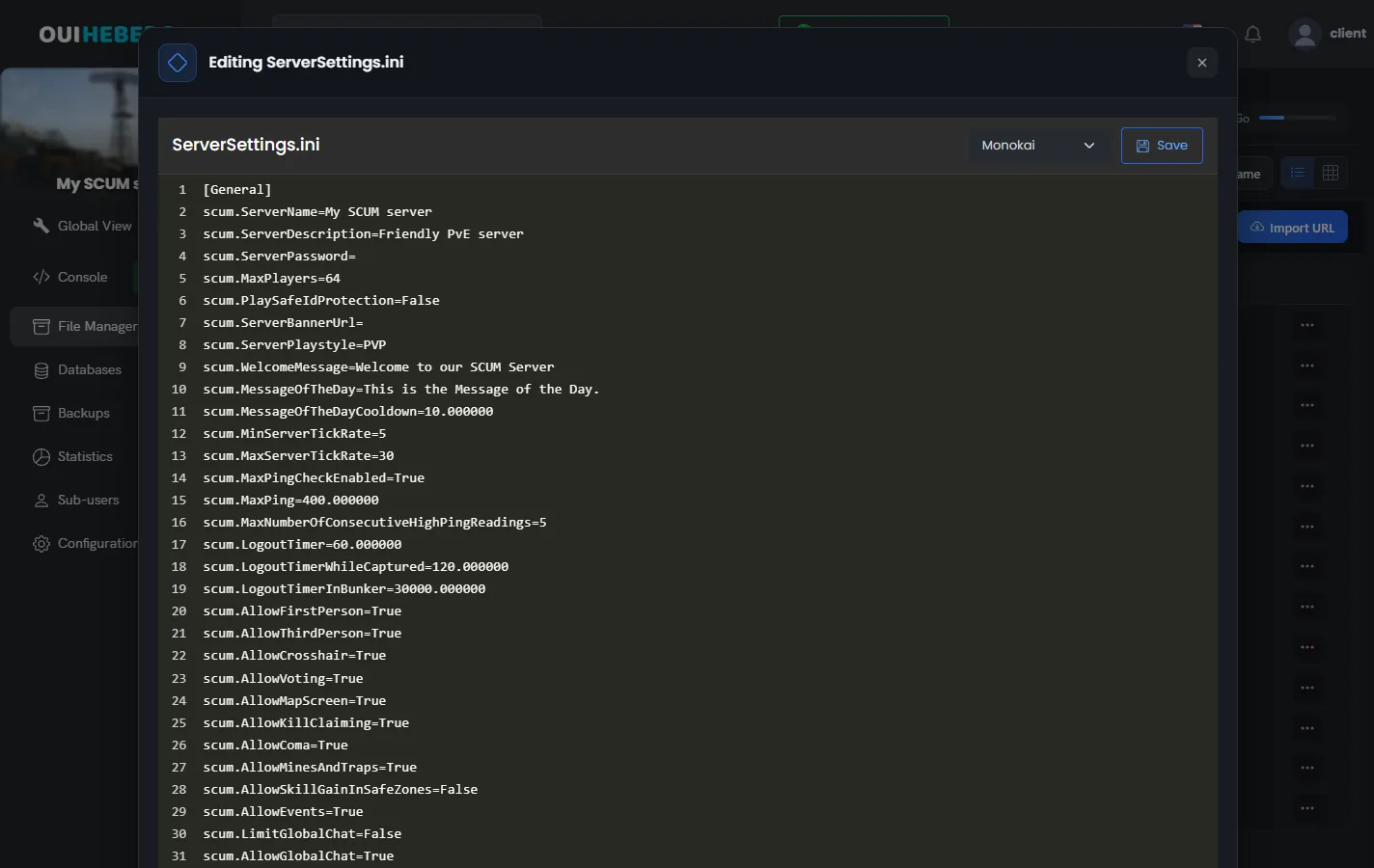
ServerSettings.ini. The "Editing ServerSettings.ini" window opens.Change the values, then click Save.
Start the server from the Console.
The settings are grouped in sections between brackets, such as [General], [World], [Vehicles] or [Features]. Each line reads scum.Setting=value. Since December 2025, switches take True or False instead of 1 or 0.
The top of the file
[General]
scum.ServerName=My SCUM server
scum.ServerDescription=Friendly PvE server
scum.ServerPassword=
scum.MaxPlayers=64
scum.PlaySafeIdProtection=False
scum.ServerBannerUrl=
scum.ServerPlaystyle=PVE
From the restart that follows the very first start, OuiPanel writes the name, description, password and playstyle from the variables to this file. On the very first start, SCUM creates the file with its own values. Change these four settings in the variables, not in the file.
You can also change the settings in game, from the "Server Settings" menu. Only players listed in ServerSettingsAdminUsers.ini can open it. The guide SCUM admin commands: how to become admin on your server shows how to add yourself.
Useful settings
| Setting | Effect, with its default value |
|---|---|
scum.WelcomeMessage | Welcome message for players (Welcome to our SCUM Server) |
scum.MessageOfTheDay | Message of the day (This is the Message of the Day.) |
scum.AllowFirstPerson, scum.AllowThirdPerson | Allow first-person or third-person view (True) |
scum.AllowCrosshair | Shows the crosshair (True) |
scum.AllowMapScreen | Gives access to the map (True) |
scum.AllowGlobalChat | Opens the global chat (True) |
scum.DisableBaseBuilding | Forbids base building (False) |
scum.QuestsEnabled | Turns quests on (True) |
scum.ArmedNPCDifficultyLevel | Difficulty of armed NPCs, from 1 to 3 (2) |
scum.MaxAllowedPuppets, scum.MaxAllowedNPCs, scum.MaxAllowedAnimals | Maximum number of puppets, NPCs and animals present at the same time (-1) |
scum.FullWipe | Erases every player's progress at startup (False) |
According to Gamepires, server load depends mostly on the number of items, players and NPCs. The puppet, NPC and animal limits help lighten it.
Keep
scum.FullWipeonFalse. When set toTrue, the server erases the progress and attributes of every character at each start.
The other settings files
The WindowsServer folder holds other files. Those ending in Users.ini list players by their SteamID64. The .json files control the economy, raids and messages. The official Gamepires guide, SCUM Server Tutorial, describes each of them.
| File | Purpose |
|---|---|
AdminUsers.ini | Server admins |
ServerSettingsAdminUsers.ini | Players who can open the in-game "Server Settings" menu |
BannedUsers.ini | Banned players |
WhitelistedUsers.ini | Priority players, even when the server is full |
ExclusiveUsers.ini | Closed list. Only the players listed can join |
SilencedUsers.ini | Silenced players and the length of their penalty |
EconomyOverride.json | Trader prices in safe zones |
RaidTimes.json | Raid times |
Notifications.json | Scheduled messages shown to players |
GameUserSettings.ini, Input.ini | No effect on the server |
Admins and player lists are covered in the guide SCUM admin commands: how to become admin on your server. Prices, loot and quests are covered in the guide SCUM mods: loot, economy and quests on your server.
Join the SCUM server
Each player needs SCUM on PC, in its Steam version. The game is not available on consoles.
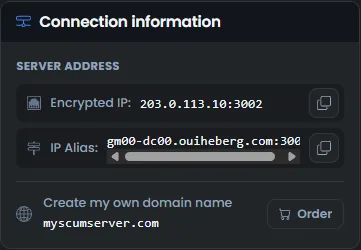
In OuiPanel, open the Console and copy an address from the Connection information block, under Server address. The IP and the alias lead to the same server.
Launch SCUM.
Connect to the server by its address, with the game's direct connection, entering the address and port exactly as shown.
The port shown by OuiPanel is the one players type. SCUM welcomes players on its launch port plus two, so OuiPanel starts the game two ports lower, and you have nothing to work out.
If you set a password, give it to your players along with the address.
Keep the server up to date
SCUM gets frequent patches. After a game update, restart the server so it runs the same version as your players.
The Automatic update variable is on by default. OuiPanel then checks the SCUM Server version and updates it at each start.
Only the public version of the game is available for private servers. According to Gamepires, server files for test builds such as the Public Alpha are not distributed.
After a large update, read the Gamepires patch notes on Steam. They announce new settings and item names that change.
Before a major update, keep a copy of the SCUM/Saved folder, which holds the settings and the world. To copy that folder to your computer, follow the guide How to connect via SFTP with FileZilla.
You can also click Create backup on the Backups page of OuiPanel. The backup keeps the SCUM/Saved folder, with your settings and the world, without the game files. After a restore, the game downloads again at startup, in a few minutes. SCUM also copies its database at each start, to a SCUM_<date>.db-backup file in the SaveFiles folder. The server keeps the three most recent copies.
If the server does not start
The OuiPanel console shows the server log. Read its last lines first.
| Symptom | Solution |
|---|---|
The WindowsServer folder is empty or missing | Start the server once. SCUM creates its files at that moment |
| The name or password goes back to its old value | These values come from the OuiPanel variables. Change them in Environment Variables |
| The number of slots does not change | Change the Maximum players variable, not the scum.MaxPlayers line |
| Players cannot connect | Check that they use the address and port from the Connection information block, without adding anything |
SCUM.db-shm and SCUM.db-wal stay in SaveFiles after a stop | This is normal with the Stop button. Do not delete them: SCUM reads them again at the next start |
| The server stops on its own during a game | SCUM uses about 10 GB of memory with no players, and more with them. If it goes over your plan's memory, it stops. Lower the player count or the puppet and NPC limits, or move to a larger plan |
Need help?
Open a ticket from Tickets › Open a Ticket, or from the Contact support tile at the bottom of your server's page in the client area. You can also ask your question on the OuiHeberg Discord.
SCUM server hosting from $9.26/mo, with 12 to 32 GB of memory, SFTP access, backups and DDoS protection included.
View plans →