
 Client area
How to make an Unturned server
To make an Unturned server, start it once in OuiPanel, then give its server code and password to your friends. The server is private by default and needs no Steam token. This guide follows each step in OuiPanel, the OuiHeberg game panel, from the first start to a public server. It assumes you already ordered your server from our Unturned server hosting.
Start your Unturned server for the first time
Your server runs the server build of Unturned, published by Smartly Dressed Games, the game's developer. It runs on Linux and downloads without a Steam account. You have nothing to install.
Log in to OuiPanel at dash.ouipanel.com and open your Unturned server.
Open the Console, then click Start.
Wait until the console shows the Running status.
The server is ready when the console shows the line Loading level: 100%. Just before that, it prints the server code on a Server Code line.
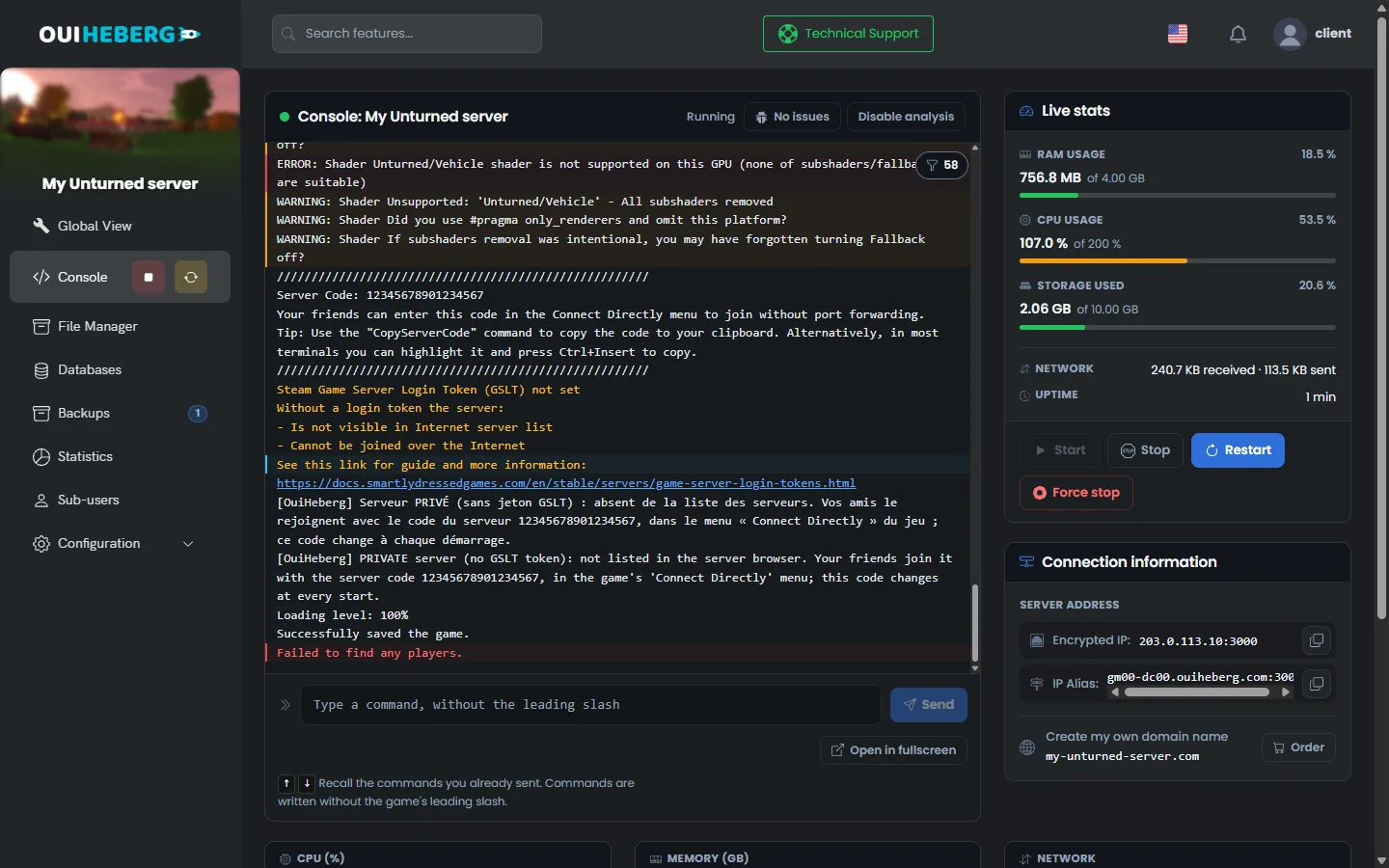
In our test, the very first launch after the installation failed once. The server then relaunched the game by itself, with a message in the console. You have nothing to do in that case.
The Stop button lets Unturned save the world before it shuts down. Still, warn your players before you stop or restart the server.
Join the server with its server code
A new server is private. It does not appear in the game's server list. Your friends join it with a 17-digit server code, which the game creates at every start. The server is also protected by a password, generated by OuiPanel when the server is created.
In the Console, note the code shown after
Server Code.Open Configuration › Server Settings, then copy the value of the Server password field.
Launch Unturned and open the "Connect Directly" menu.
Enter the server code, then the password.
The last two steps come from the game's own messages and from the developer's documentation. We have not checked them with a connected player yet. According to that documentation, joining by code goes through the Steam relay.
The code changes every time the server starts. Note it again after a restart, then send it to your friends again. Without a Steam token, the console also states that the server cannot be joined over the Internet. So rely on the server code rather than on the address.
Give the code and the password to your friends at the same time. The password is changed in the variables.
Set the variables in OuiPanel
The settings read at start are in Configuration › Server Settings, in the Environment Variables block. Confirm a field with the check mark on its right, then restart the server.
| Variable | Purpose |
|---|---|
| Server name | Name shown to players, 5 to 50 characters. "Serveur Unturned OuiHeberg" by default |
| Server password | Password asked from players, generated at creation. Clear the field for a server without a password |
| Steam game server login token (GSLT) | 32-character Steam token. Empty, the server stays private. Filled in, it becomes public |
| Automatic update | Switch enabled by default. Steam checks the game version at every start |
| Map | Map loaded at start, PEI by default |
| Maximum players | Number of slots, from 1 to 200. The delivered value is 24. How many players the server really handles depends on the memory of your plan |
| Difficulty | List with Easy, Normal or Hard. The delivered value is Normal |
| Perspective | List with First, Third, Both or Vehicle. The delivered value is Both |
| PvE mode (no combat between players) | Switch disabled by default. Enabled, players can no longer hurt each other |
| Automatic save (minutes) | Delay in minutes between two automatic world saves, 10 by default. At 0, they are turned off |
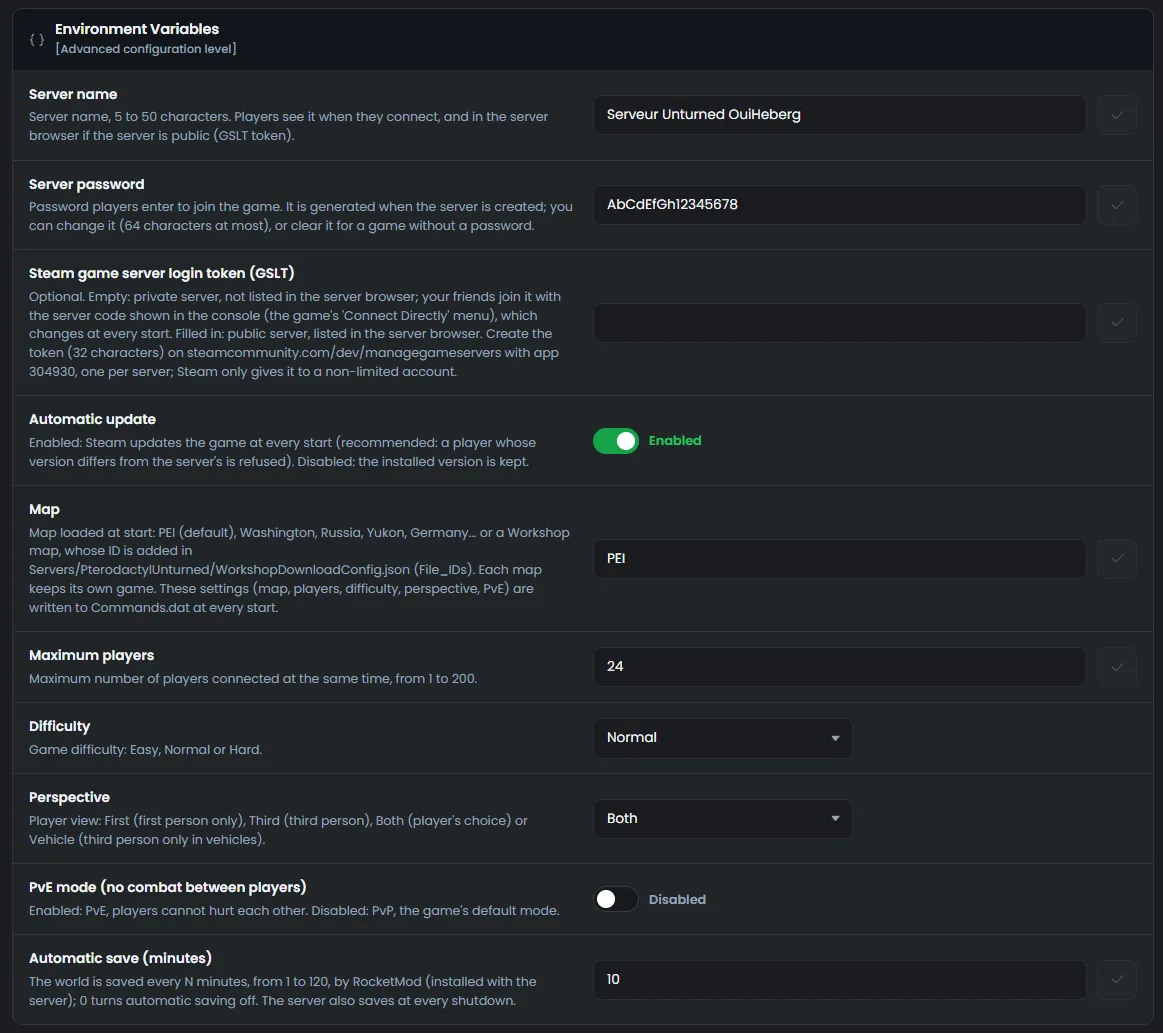
For the perspective, First forces first person and Third third person. Both leaves the choice to the player. Vehicle keeps third person for vehicles only.
Without a password, anyone who knows the server code can get in. Keep one, even on a private server.
Understand the Commands.dat file
At every start, OuiPanel writes your settings to the file Servers/PterodactylUnturned/Server/Commands.dat. The game reads this file, one command per line.
In the side menu, click File Manager.
Open the folders
Servers,PterodactylUnturned, thenServer.Click
Commands.dat. The "Editing Commands.dat" window opens.
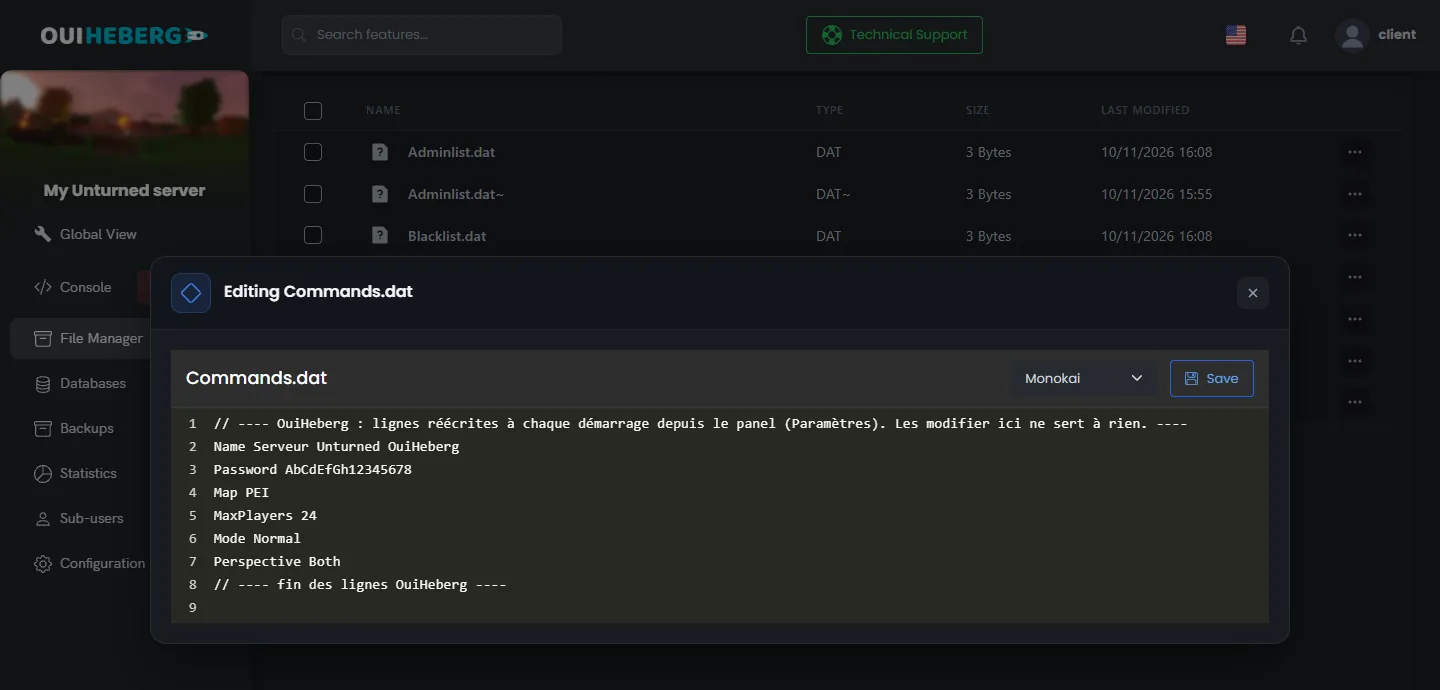
// ---- OuiHeberg : lignes réécrites à chaque démarrage depuis le panel (Paramètres). Les modifier ici ne sert à rien. ----
Name Serveur Unturned OuiHeberg
Password MotDePasseDuServeur
Map PEI
MaxPlayers 24
Mode Normal
Perspective Both
// ---- fin des lignes OuiHeberg ----
OuiPanel rewrites this block at every start, between its two comment lines. So change the name, password, map, players, difficulty, perspective and PvE mode in the variables. A change made inside this block would be erased. The PvE line only appears when the mode is enabled.
Your other lines are kept, in their order. So you can add commands such as Owner, Cheats or Welcome below the block. Edit the file with the server stopped, then click Save.
Do not add a
Port,BindorGSLTline. OuiPanel comments them out at start, because the port and the token come from the panel.
Make the server public with a Steam token
A public server appears in the game's server list. For that, the developer requires a Steam game server login token, called a GSLT. This token belongs to your Steam account. We cannot create it for you.
Log in at steamcommunity.com/dev/managegameservers with your Steam account.
Enter the app ID
304930, the one for Unturned, add a memo, then create the token.In the OuiPanel variables, paste the 32-character token into Steam game server login token (GSLT).
Restart the server, then read the console.
According to Steam, only a non-limited account with a registered phone number can create a token. An account that has never bought anything on Steam stays limited. In that case, keep a private server and its server code.
According to the developer's documentation, the server should then appear in the game's server list, under the name set in Server name. Its server code should also stay the same from one start to the next. We have not yet checked this public mode with a real token on our servers.
If Steam rejects the token, the server stops and the console explains why. We checked this with a fake token. Then fix the token, or clear the field to go back to a private server. On a public server, also clear Server password if everyone should be able to join.
The token is stored in plain text in the variables. Your sub-users can read it. Create one token per server and do not share it.
Save the world
Unturned alone only saves the world at shutdown and on the save command. On our servers, RocketMod is installed with the game and saves the world at a regular interval. The delay is set in the Automatic save (minutes) variable.
Every 10 minutes by default, the world is written to disk. The console then shows
Saving server.The Stop button also saves the world before the shutdown.
The
savecommand, typed in the Console, saves the world right away.
The Backups page of OuiPanel creates a copy of the server with Create backup. It contains your world, your settings and the RocketMod folder, without the game files. After a restore with Restore, the game is downloaded again at the next start.
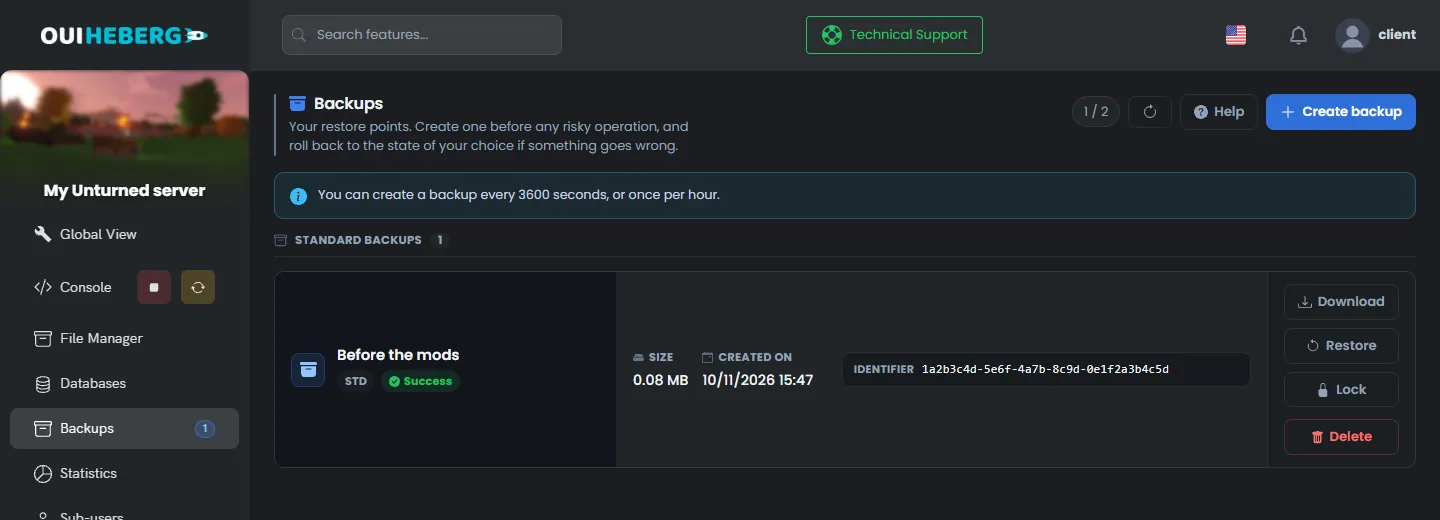
The automatic world save depends on RocketMod. If you remove it, the world is only saved at shutdown. The console reminds you at every start.
You can also copy the Servers folder to your computer over SFTP, with the guide How to connect via SFTP with FileZilla.
Update the server
The Automatic update switch is enabled by default. At every start, Steam then checks the game version before the server launches. We saw this check in the console. No new version came out during our test. So we have not observed a real update yet.
A player whose game is newer than the server may be refused. After an Unturned update, restart the server from the Console.
The Reinstall server button, in Server Settings, replaces the game files. In our test, it kept the Servers folder, so the world and the settings.
To add mods or change the map, read the guide How to add mods to an Unturned server. To name an admin or kick a player, read the guide Unturned admin commands.
If the server does not start
The OuiPanel console shows the server log. Read its last lines first.
| Symptom | Solution |
|---|---|
| The console announces a new attempt at the first launch | This is expected after an installation or a restore. The server relaunches the game once, by itself |
| The server stops and the console mentions the token | Steam rejected the token. Fix Steam game server login token (GSLT), or clear the field |
| The console asks you to reinstall the server | Click Reinstall server in Server Settings. Your world is kept |
| The console refuses a setting | A value is out of range, for example a name shorter than 5 characters. Fix the variable it names |
| The name, map or password goes back to the old value | These values come from the OuiPanel variables. Change them in Environment Variables |
| A friend cannot get in | Send the server code again, since it changes at every start, along with the password |
| The server is not in the game's list | Without a Steam token, this is normal. A private server is joined with its code |
Need help?
Open a ticket from Tickets › Open a Ticket, or from the Contact support tile at the bottom of your server's page in the client area. You can also ask your question on the OuiHeberg Discord.
Unturned server hosting from $2.30/mo, on the game's official dedicated server, with SFTP access, backups and DDoS protection included.
View plans →