
 Client area
How to make a server in The Isle Evrima
To make a server in The Isle Evrima, start the server delivered in OuiPanel, the OuiHeberg game panel, then set it up. The game downloads on the first start, with no Steam account needed. This guide assumes you ordered your server from our The Isle server hosting. It walks through each step, from the panel settings to the Game.ini file, with admins, the whitelist, the password and the playable species.
Start the server for the first time
Your server runs Evrima, the current branch of the game, on the Gateway map. Legacy, the old branch frozen since 2022, is not offered.
Log in to OuiPanel at dash.ouipanel.com and open your The Isle server.
Open the Console, then click Start.
Wait until the console shows the Running state.
On the first start, the server downloads the game from Steam, about 1.5 GB. It is ready when the console shows the line LoadMap Load map complete /Game/TheIsle/Maps/Game/Gateway/Gateway. In our test, a new server started on the first try, with no restart.
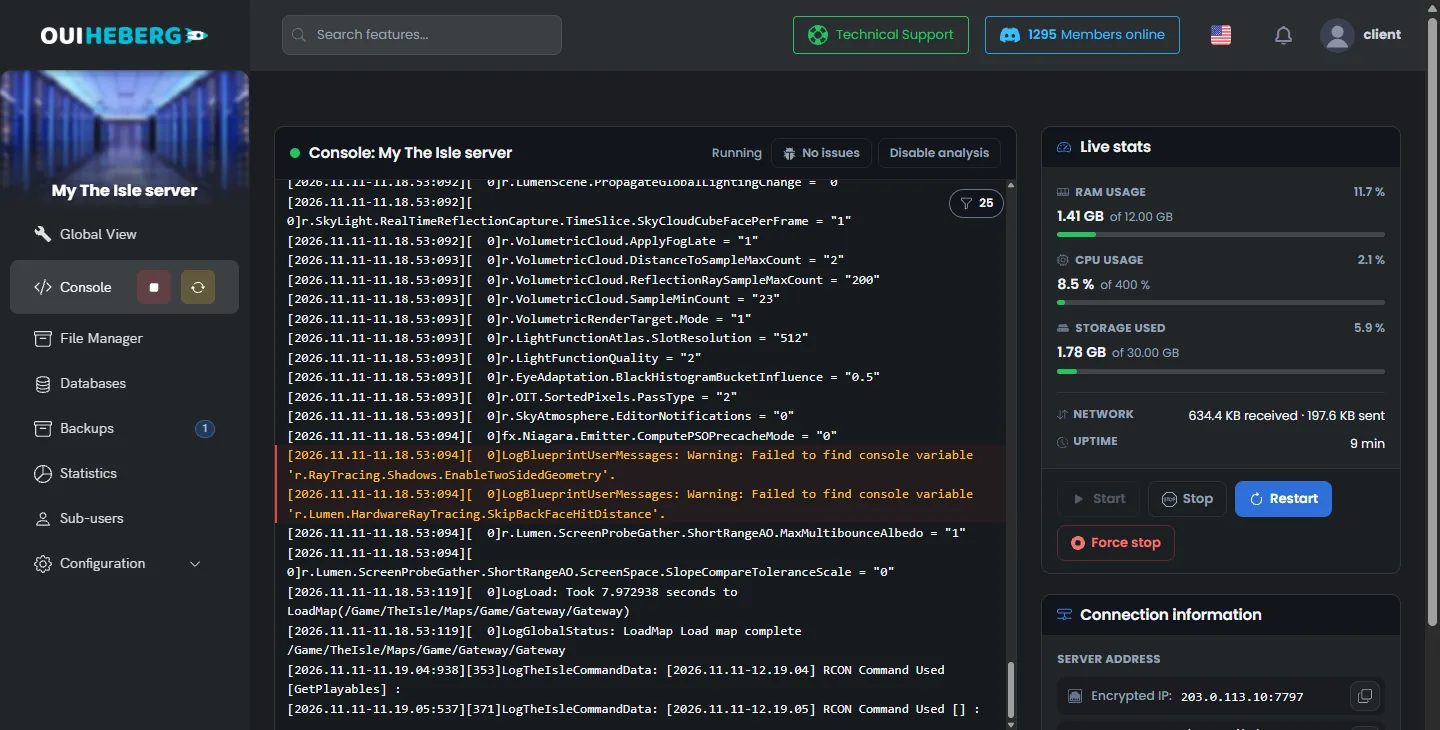
On every start, the server also asks Steam for the latest version of the game. A running server does not update.
Join the server from the game
On Steam, Evrima is a beta branch of the game, open to everyone. According to Afterthought, the game's studio, each player picks it this way.
In your Steam library, right-click The Isle, then click Properties.
In the Betas tab, choose the "EVRIMA Public Branch" branch.
Launch the game and look for your server by its name in the server list.
According to other hosts, the server only shows up in the list a few minutes after it starts. Still according to them, Evrima does not let you join a server by its IP address. We have not checked this with a player yet.
If you still cannot find your server, follow the guide The Isle server not showing up in the server list.
Set up the server in the settings
The usual settings are in Configuration › Server Settings, in the Environment Variables block. On every start, OuiPanel copies these values into Game.ini. So restart the server after a change.
| Variable | Role |
|---|---|
| Server name | Name shown in the game's server list, 70 characters at most. The server is delivered with the name "Serveur The Isle OuiHeberg" |
| Player count | Number of slots, from 1 to 300. The delivered value is 100, the game's default. Afterthought advises against going over 100 players |
| Allow replays | Allows replays in the game. The delivered value is true |
| Humans | Enables the human character, experimental according to Afterthought. The delivered value is false |
| Dynamic weather | Sets the bRandomWeatherEnabled key, which makes the weather change. The delivered value is true |
| Enable RCON | Opens the server's remote console. The delivered value is false |
| RCON port | TCP port of RCON, assigned with the server. It is locked |
| RCON password | RCON password, generated when the server is created. Do not share it |
| Enable the queue | Makes players wait when the server is full. The delivered value is false |
| Queue port | TCP port of the queue, assigned with the server. It is locked |
| Server password enabled | Asks players for a password. The delivered value is false, so the server is open |
| Server password | Password asked from players, 20 characters at most |
| Automatic update | Switch enabled by default. Steam updates the game on every start |
| Admin SteamID64 | SteamID64 of the admins, added to Game.ini on every start. Empty on delivery |
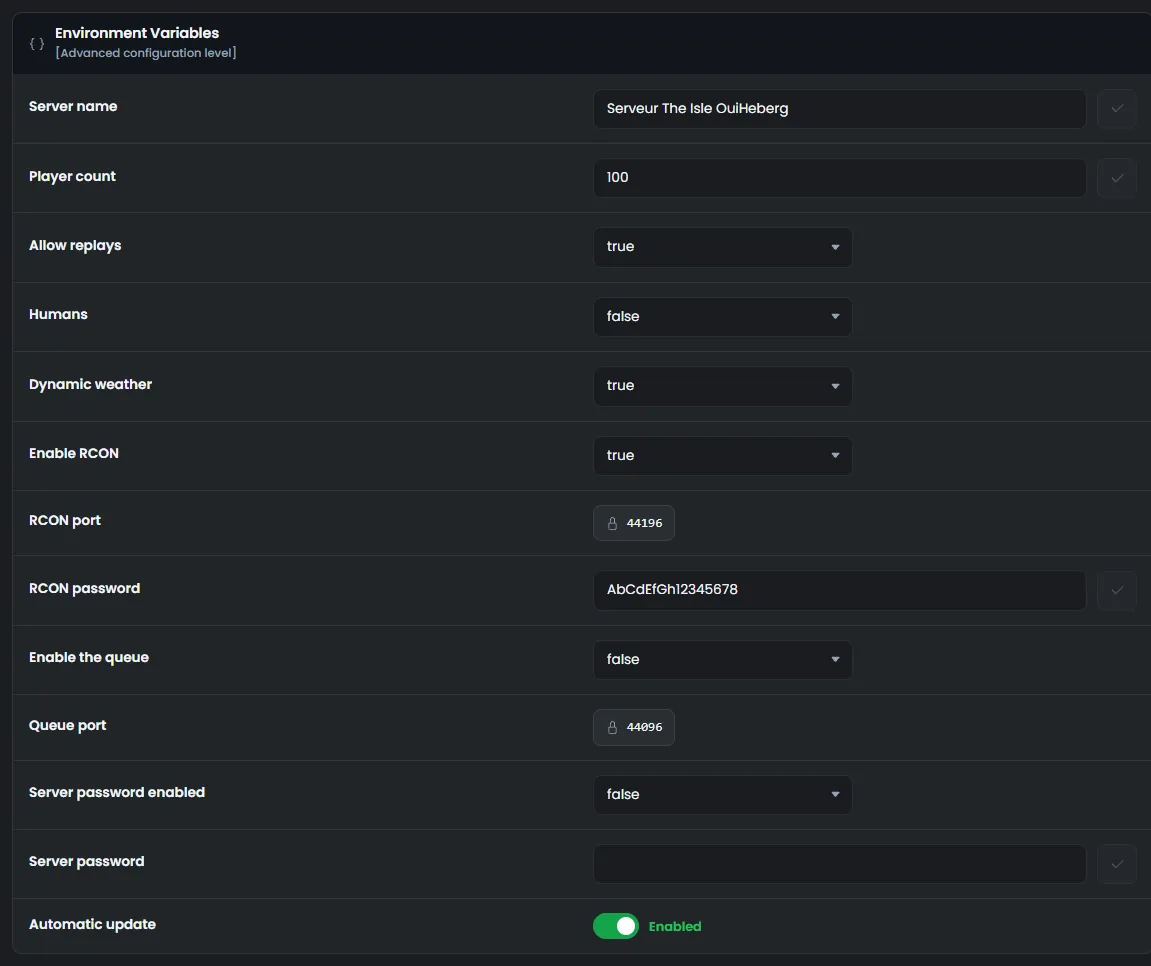
RCON and its commands are explained in the guide The Isle Evrima admin commands.
Edit the Game.ini file
The other game settings are in TheIsle/Saved/Config/LinuxServer/Game.ini. The file has two sections. The [/Script/TheIsle.TIGameSession] section holds the server settings. The [/Script/TheIsle.TIGameStateBase] section holds the lists, such as admins, the whitelist and the species.
In the Console, click Stop and wait until the server has stopped.
Click File Manager, then open the
TheIsle,Saved,ConfigandLinuxServerfolders.Click
Game.ini. The "Editing Game.ini" window opens.Edit the lines you need, then click Save.
Start the server.
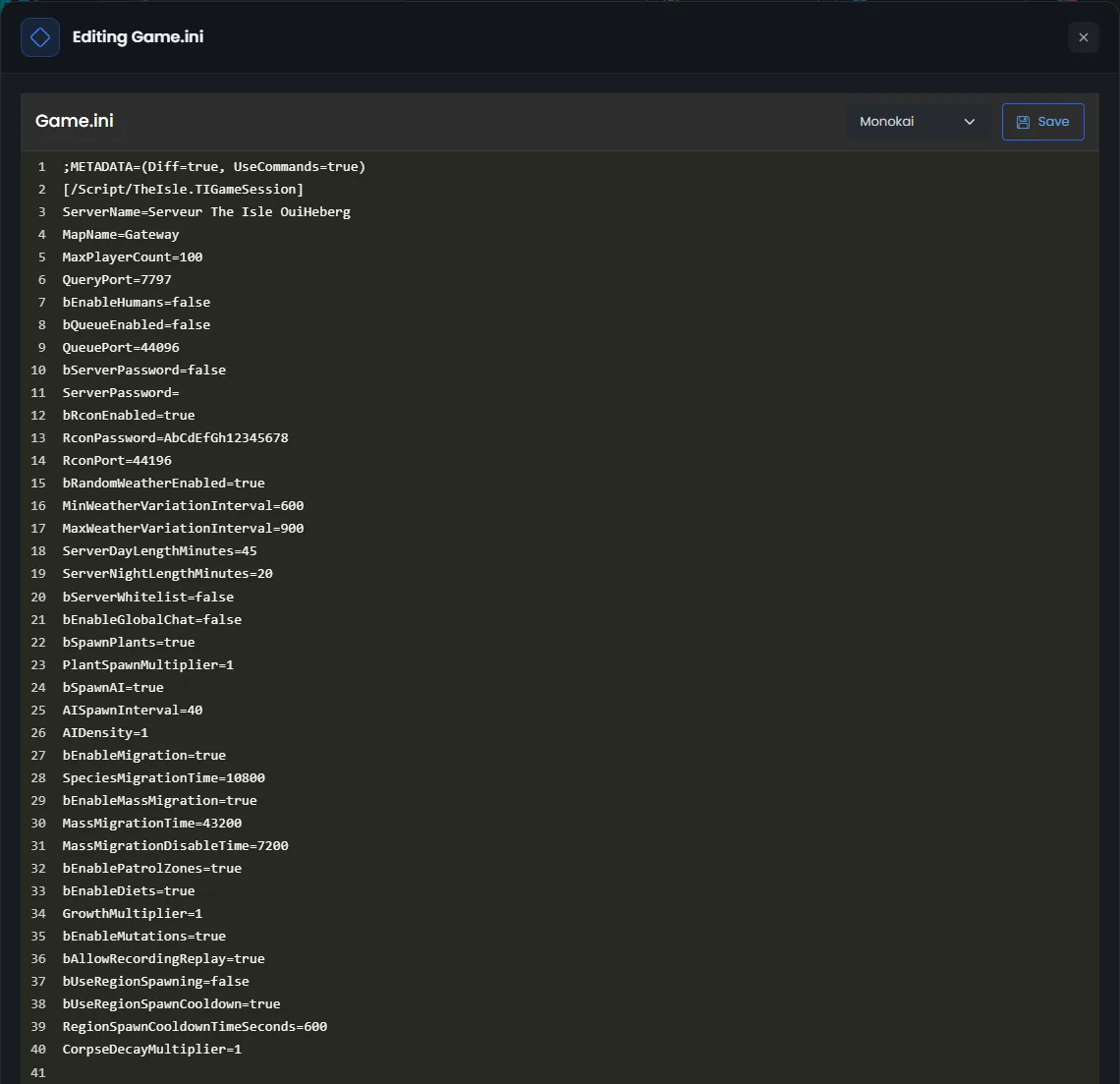
Always edit Game.ini while the server is stopped. The game rewrites this file on every stop, and a change made while the server runs is lost. We checked this on a test server.
OuiPanel rewrites some lines on every start, from the settings. So change them in the settings, never in the file. They are ServerName, MaxPlayerCount, bServerPassword, ServerPassword, bRconEnabled, RconPort, RconPassword, bQueueEnabled, QueuePort, bEnableHumans, bAllowRecordingReplay and bRandomWeatherEnabled.
The other lines follow the example published by Afterthought. Here are a few of them, with their delivered value.
ServerDayLengthMinutes=45
ServerNightLengthMinutes=20
GrowthMultiplier=1
bSpawnAI=true
AIDensity=1
bEnableGlobalChat=false
ServerDayLengthMinutesandServerNightLengthMinutesset the length of day and night, in minutes.GrowthMultiplierspeeds up dinosaur growth. Afterthought advises not to go above 20.bSpawnAIandAIDensitycontrol the spawning of animals run by the game.bEnableGlobalChatenables the server's global chat.
We have not tried other values for these lines on our servers yet. You can also edit the file from your computer, with the guide How to connect via SFTP with FileZilla.
Become admin of the server
According to Afterthought, an admin is declared by their 17-digit Steam ID, the SteamID64, on an AdminsSteamIDs= line of Game.ini. OuiPanel can write this line for you.
In Steam, click your name at the top right, then the account details. Note your Steam ID.
In Environment Variables, enter it in Admin SteamID64. For several admins, separate the IDs with commas, without spaces, 10 at most.
Restart the server.
On every start, OuiPanel adds these IDs to the [/Script/TheIsle.TIGameStateBase] section of Game.ini. An ID removed from the field leaves the file on the next start. We checked this on a test server.
You can also write these lines by hand in Game.ini, while the server is stopped, one line per admin. OuiPanel keeps the lines written by hand.
[/Script/TheIsle.TIGameStateBase]
AdminsSteamIDs=76561198000000000
AdminsSteamIDs=76561198000000001
We have not checked admin rights with a connected player yet. The guide The Isle Evrima admin commands shows what an admin can do.
Keep the server for your players
Set a password
In Environment Variables, set Server password enabled to
true.Enter the password in Server password, 20 characters at most.
Restart the server.
In our test, the game did read both settings. We have not tried a player joining with this password yet.
Enable the whitelist
According to Afterthought, a whitelist only lets in the Steam IDs it contains. Admins get in even if they are not on it.
Stop the server, then open
Game.ini.In the
[/Script/TheIsle.TIGameSession]section, setbServerWhitelisttotrue.In the
[/Script/TheIsle.TIGameStateBase]section, add oneWhitelistIDs=line per player, with their SteamID64.Click Save, then start the server.
[/Script/TheIsle.TIGameSession]
bServerWhitelist=true

[/Script/TheIsle.TIGameStateBase]
WhitelistIDs=76561198000000000
WhitelistIDs=76561198000000001
We have not checked the whitelist with a player yet.
Choose the playable species
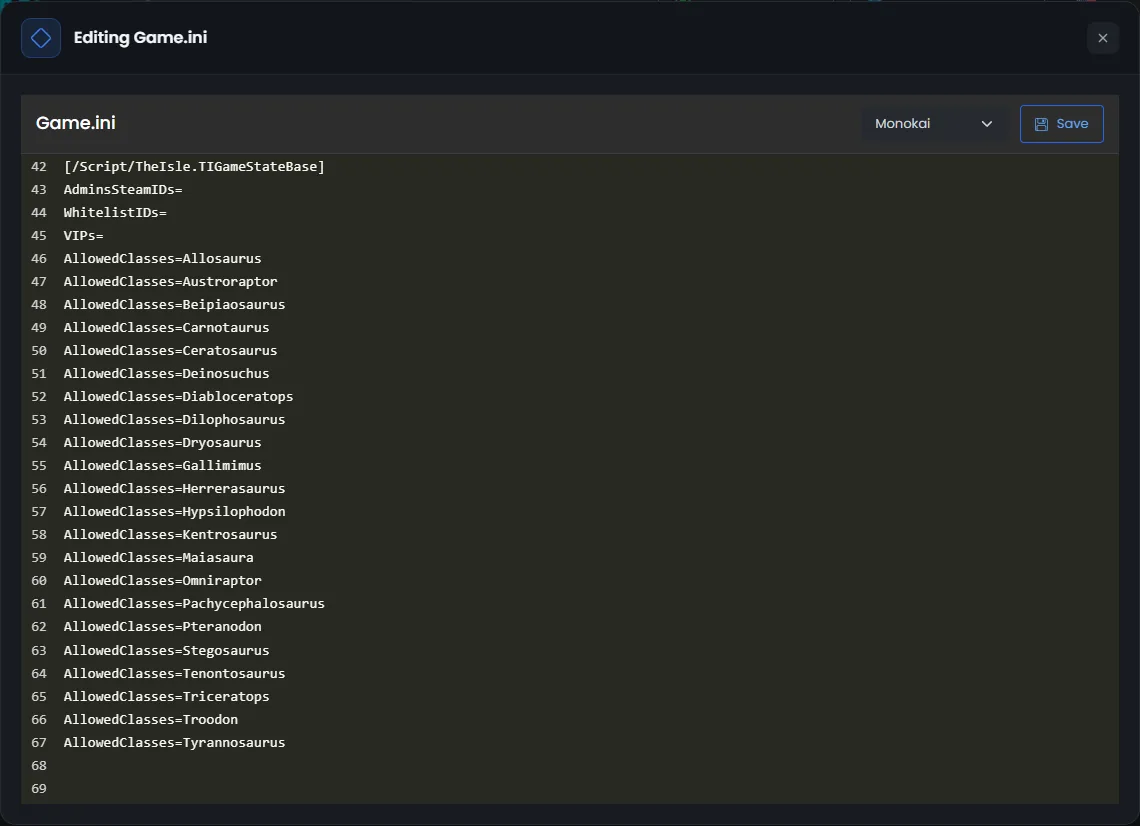
The species players can pick are listed in the [/Script/TheIsle.TIGameStateBase] section, one AllowedClasses= line per species. The server is delivered with the 22 playable species of Evrima.
Allosaurus, Austroraptor, Beipiaosaurus, Carnotaurus, Ceratosaurus, Deinosuchus, Diabloceratops, Dilophosaurus, Dryosaurus, Gallimimus, Herrerasaurus, Hypsilophodon, Kentrosaurus, Maiasaura, Omniraptor, Pachycephalosaurus, Pteranodon, Stegosaurus, Tenontosaurus, Triceratops, Troodon and Tyrannosaurus.
According to Afterthought, removing a line is enough to remove the species. Edit the file while the server is stopped, as always. In our test, the server did read the 22 species. We have not checked picking a species in game yet.
Keep at least one
AllowedClasses=line. Sources disagree on what an empty list does.
According to Afterthought, the game's admin panel can also add or remove a species. The choice is then saved in Game.ini.
If the server ignores your settings
| Symptom | Solution |
|---|---|
| Your changes in Game.ini are gone | The server was running. Stop it, make the change again, then start it |
| The name, slots or password do not change | These values come from the settings. Change them in Environment Variables, then restart |
| The first start takes long | The server downloads the game first. Wait for the Load map complete line |
| The server does not show up in the game's list | Follow the guide The Isle server not showing up in the server list |
Need help?
Open a ticket from Tickets › Open a Ticket, or from the Contact support tile at the bottom of your server's page in the client area. You can also ask your question on the OuiHeberg Discord.
The Isle Evrima server hosting from $6.92/mo, on the official dedicated server, with SFTP access, backups and DDoS protection included.
View plans →