
 Client area
V Rising console commands
V Rising console commands are typed in the game's own console, after the adminauth command. The OuiPanel console, the OuiHeberg game panel, passes none of them to the game. This guide shows how to declare yourself admin, open the game console and use the commands mentioned by Stunlock. It assumes you ordered your V Rising dedicated server from OuiHeberg.
The server must have started at least once. The guide How to set up a V Rising dedicated server explains this first start.
Why the OuiPanel console is not enough
The OuiPanel Console shows the server log and its Start, Stop and Restart buttons. It passes no command to the game. In our test, the help command, sent from this console, got no reply from the game.
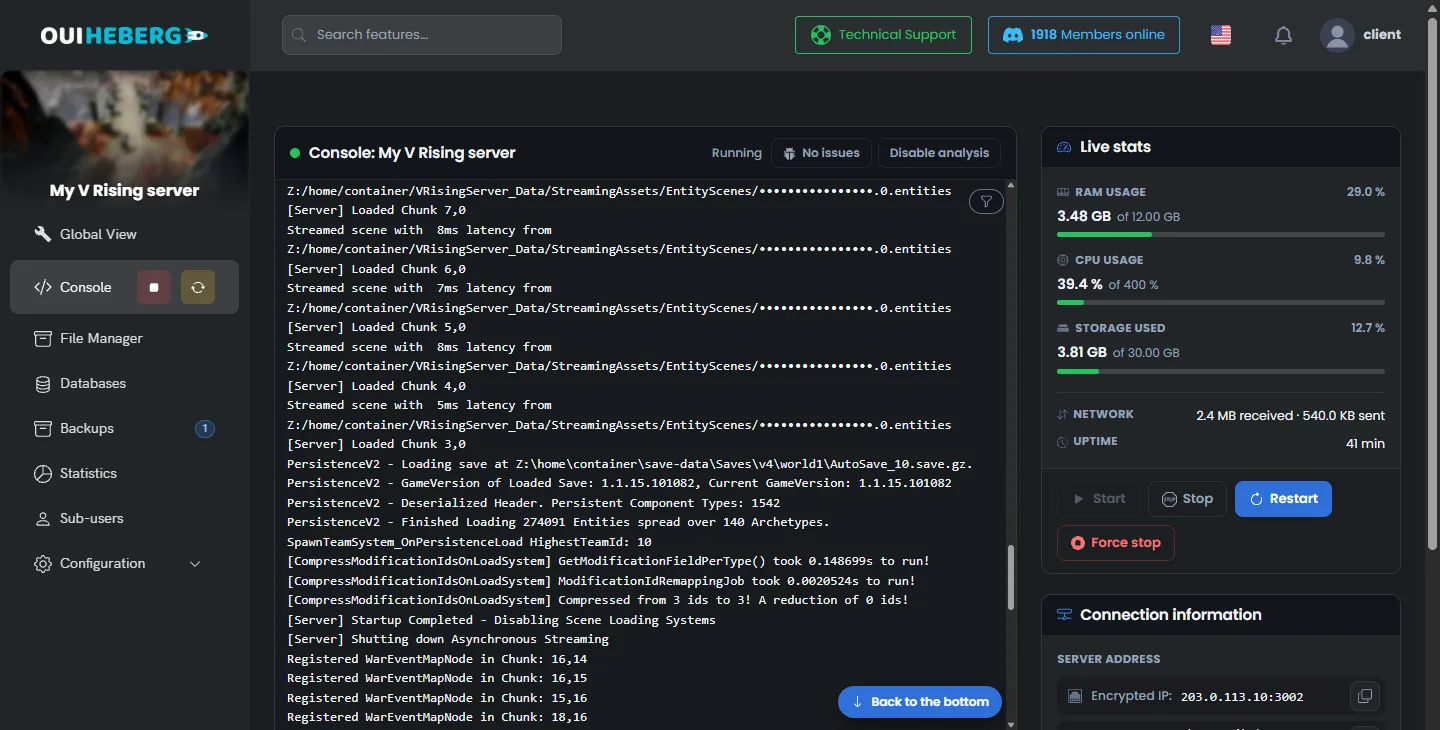
RCON, the game's remote console, cannot be reached on our servers. Leave Enable RCON on false. To manage the world, use the game console.
Declare yourself admin in adminlist.txt
According to Stunlock, an admin is declared by their 17-digit Steam ID, the SteamID64, in the adminlist.txt file. The server creates this empty file on the first start.
In Steam, click your name at the top right, then the account details. Note your Steam ID.
In OuiPanel, click File Manager, then open the
save-dataandSettingsfolders.Click
adminlist.txt. The "Editing adminlist.txt" window opens.Type one SteamID64 per line, then click Save.
76561198000000000
76561198000000001
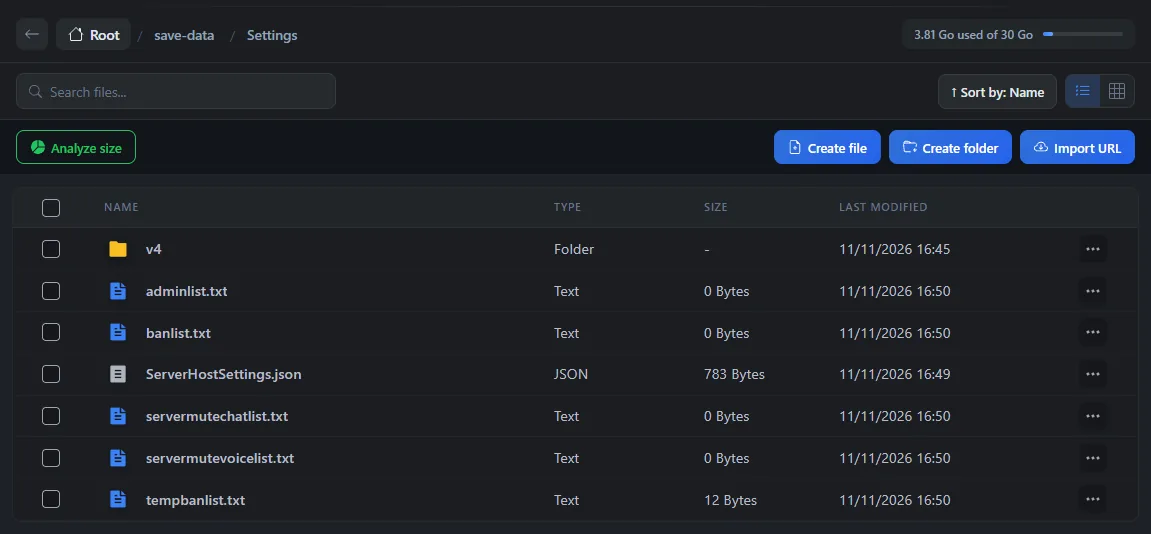
According to Stunlock, the server picks up this file without a restart. Maximum connected admins sets how many admins can still get in when the server is full, 4 on delivery.
Enable the game console and type adminauth
According to Stunlock, an admin does the following in the game.
In the game options, enable the console.
Open the console with the
~key.Type
adminauth, then confirm.
The command would then give you admin rights, if your SteamID64 is in adminlist.txt. We have not tried this command with a player on our servers yet.
Use the commands mentioned by Stunlock
Stunlock lists these commands in the instructions for its server, published on GitHub, and in its help center. They are typed in the game console, after adminauth. We have not tried them on our servers yet.
| Command | Use |
|---|---|
list | Shows all the available commands |
kick | Kicks a player from the server |
banuser | Bans a player |
bancharacter | Bans a character |
banned | Shows the current bans |
unban | Lifts a ban |
Start with list. According to Stunlock, it shows every command the game accepts.
The other commands announced by Stunlock
Stunlock's patch notes, published on Steam, mention other admin commands. We have not tried them on our servers.
changehealthofclosesttomouseandchangedurability, announced in 2022.decayusercastles, announced in 2022.createjewelandcreatelegendaryweapon, announced in 2023.HideHUDandShowHUD, which hide and show the interface. They do not need admin rights.
Ban a player with banlist.txt
According to Stunlock, banlist.txt sits in the same folder, save-data/Settings, with one SteamID64 per line. The server rewrites this file when an admin bans a player in the game. You can also add an ID by hand, as in adminlist.txt.
If a command does not work
| Symptom | Solution |
|---|---|
| The OuiPanel console does not react to a command | This is normal. Type the command in the game console |
| The game console does not open | Enable it first in the game options |
adminauth does not give admin rights | Check the 17 digits of your SteamID64 in adminlist.txt, one ID per line |
| An RCON client does not connect | RCON cannot be reached on our servers. Use the game console |
To change the rules of the world, follow the guide V Rising server settings.
Need help?
Open a ticket from Tickets › Open a Ticket, or from the Contact support tile at the bottom of your server's page in the client area. You can also ask your question on the OuiHeberg Discord.
V Rising server hosting from $6.92/mo, on the official dedicated server from Stunlock, with SFTP access, backups and DDoS protection included.
View plans →