
 Client area
How to set up a VEIN dedicated server
To set up a VEIN server with OuiHeberg, order a plan, then configure it in OuiPanel, the OuiHeberg game panel. Ramjet Studios' server software installs on its own, with no Steam account, in a few minutes. Your players join it through the game's Direct Connect, with the IP address and the port. Only the PC version of VEIN on Steam can join it.
This guide starts from a server you have already ordered and follows each step, from the first start to stopping it. The four plans, from 12 to 32 GB, are on our VEIN server hosting page.
Host it yourself or rent a VEIN server?
Ramjet Studios publishes the VEIN server software for free, for Windows and for Linux. It downloads from Steam without owning the game. So you can run it on your own machine.
In that case, the world is only open while the machine stays on. According to Ramjet's documentation, you also need to open two UDP ports on your router, 7777 for the game and 27015 for Steam.
At OuiHeberg, the server runs on a machine that stays online day and night, with anti-DDoS and backups. Our plans start at 12 GB of memory. Ramjet publishes no requirements for the server. The 12 GB often quoted are what the game asks of a player's PC.
Order and start the server
You pick the country when you order. After payment, the server is created, installs on its own with no Steam account, then starts by itself. Allow a few minutes.
Log in to OuiPanel at dash.ouipanel.com and open your VEIN server.
Open the Console. If the status shows Offline, click Start.
Wait for the status to change to Running. A start takes about one minute.
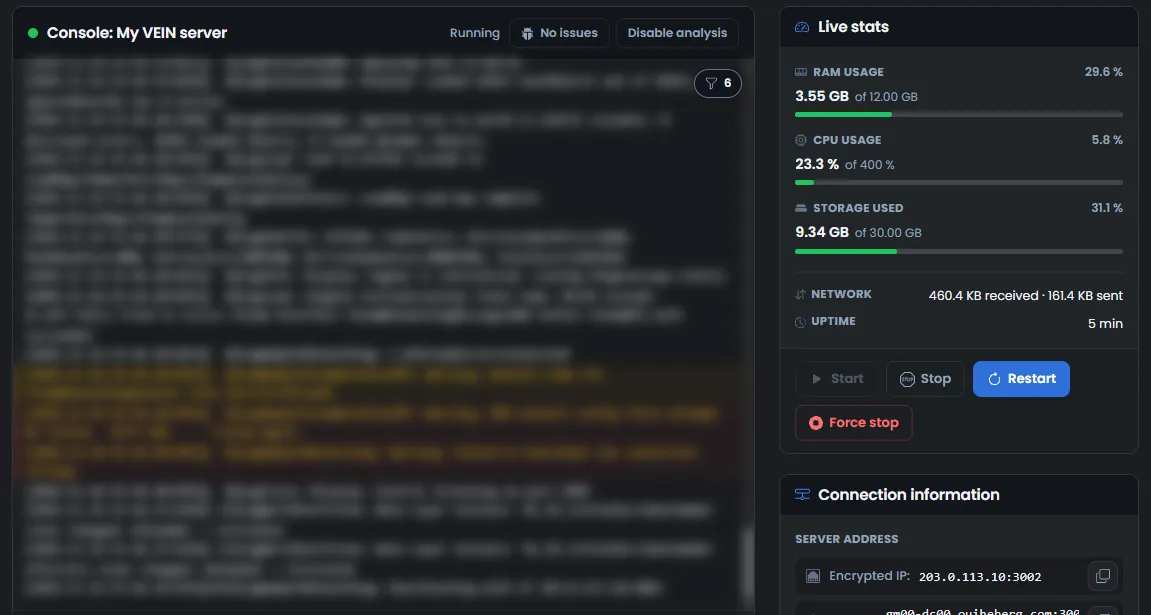
The OuiPanel console is for following the server log, starting it and stopping it. VEIN does not read commands typed there. Commands are run in the game, as the guide VEIN console commands for server admins explains.
Do you have a OuiBox? A VEIN server needs at least 12 GB of memory there too.
Configure the server in the variables
The everyday settings are in Configuration › Server Settings, in the Environment Variables block. For a field, type the value, then click the check mark on its right. For a switch or a list, your choice is saved at once.
| Variable | What it does |
|---|---|
| Server name | Your server's name, 64 characters at most. It is delivered as "Serveur VEIN OuiHeberg" |
| Server password | Password to join the server, generated when the server is created. It is optional. Empty the field for a server open to everyone |
| Maximum players | Number of players connected at the same time, from 1 to 64. The delivered value is 16 |
| Public server | A True or False list. On True, the server is published on Steam. On False, it is not |
| Query port | Steam query port, right after the game port. It is assigned at creation and cannot be changed |
| Automatic update | Updates the game from Steam on start. Enabled on delivery |
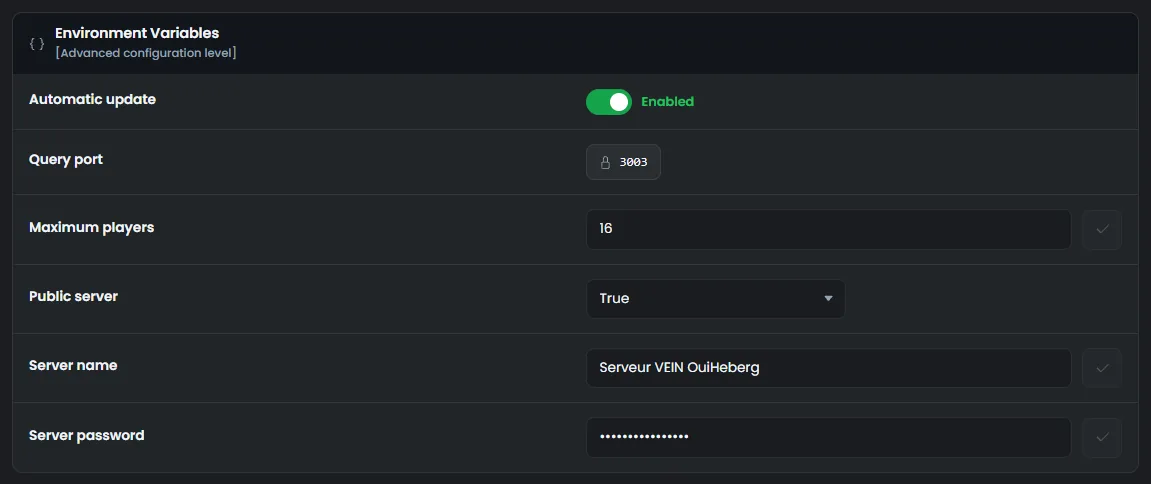
On every start, OuiPanel writes these values to the server's Game.ini file. We checked this on a test server. So restart the server after a change.
The password has 4 to 32 characters, with letters, digits, hyphens and underscores. VEIN tells uppercase and lowercase apart.
The game rules, such as PvP or XP, are covered in the guide How to change your VEIN server settings.
How do you join the VEIN server?
Your players join the server through the game's Direct Connect, with the IP address and the port.
In OuiPanel, open the Global View.
Copy the Main address with the button on its right. It is made of the IP address and the game port.
Give this address to your players. In VEIN, they choose Direct Connect and type it in.

The server's two ports, the game port and the query port, are reserved when it is created. You have nothing to set up.
If the server has a password, the game should ask for it when joining. A server set to False in Public server should stay reachable through Direct Connect. We have not yet tried these two points with a player on our servers.
Only the PC version of VEIN on Steam can join this server, on Windows or on Linux. The game does not exist on consoles and has no crossplay.
Where is the VEIN world saved?
The world is saved in the file Vein/Saved/SaveGames/Server.vns. The whole game fits in this single file.
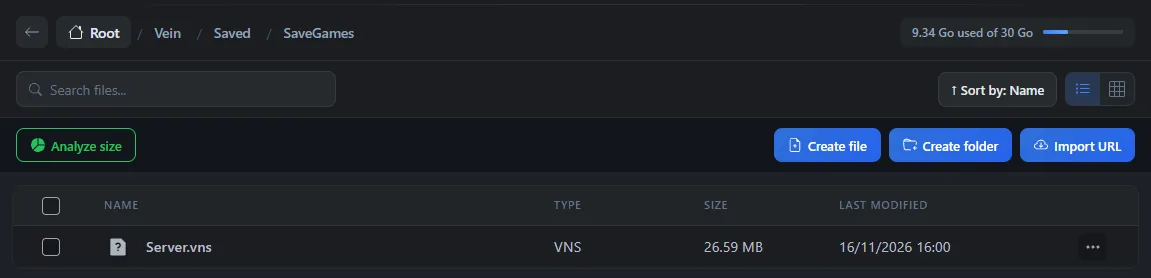
Stopping the server from OuiPanel saves the world before shutting it down. We checked this on a test server, on every stop. With no player connected, the game makes no automatic save.
According to Ramjet, the game also saves the world every 5 minutes during play and keeps the last 10 saves. Characters should be saved with the world and come back after a restart. We have not yet tried these two points with a player.
Stop the server without losing anything
In the Console, click Stop.
The status changes to Stopping while the world is saved. The stop only takes a moment.
Wait for the Offline status before you edit a file or restart.
Do not use the Force stop button. It would cut the server off at once, without saving the world.
Back up and restore the server
The OuiPanel Backups menu makes a copy of the server, on demand with Create backup or at a set time, every night for example. Make one before each big VEIN update.
The copy keeps the Vein/Saved folder, with the world and the settings. The game files are not in it, they download again on the next start.
In Backups, click Restore on the right of the backup you want.
To start again from a clean copy, turn on Delete all files before restoring, then confirm with Restore.
Start the server from the Console. The next start downloads the game again and takes about two minutes.
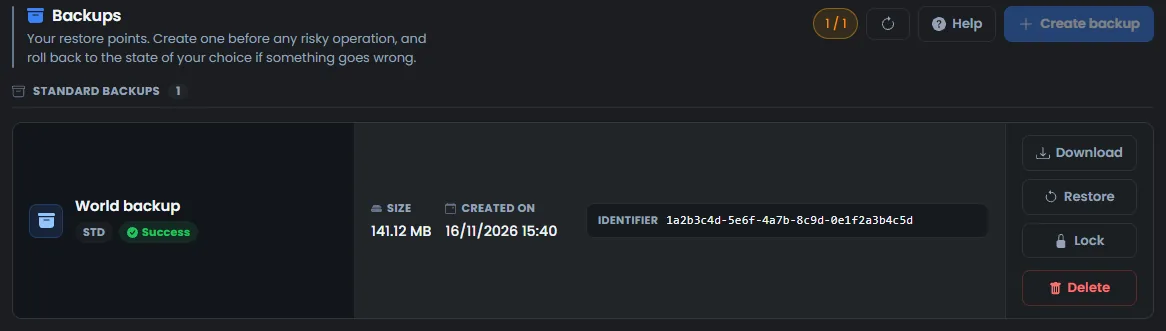
We restored a backup this way on a test server. The world was there on the next start.
If the server does not behave as expected
| Symptom | Solution |
|---|---|
A change made in Game.ini is gone | It was made while the server was running, and the game rewrites this file when it stops. Stop the server, wait for the Offline status, then make it again |
The name or password changed in Game.ini goes back to the old value | OuiPanel rewrites these lines on every start. Change them in the variables |
| A command typed in the OuiPanel console does nothing | VEIN does not read this console. Commands are typed in the game |
| A player can no longer join after a game update | According to Ramjet, the server and the player must have the same version. Check that Automatic update is enabled, then restart the server |
Need help?
Open a ticket from Tickets › Open a Ticket, or from the Contact support tile at the bottom of your server's page in the client area. You can also ask your question on the OuiHeberg Discord.
VEIN server hosting from $9.26/mo, on Ramjet Studios' native Linux dedicated server with 12 GB of RAM or more, SFTP access, backups and DDoS protection included.
View plans →