
 Client area
How to set up a CS2 dedicated server
To set up a CS2 server with OuiHeberg, order a plan, paste your GSLT into OuiPanel, the OuiHeberg game panel, then start the server. Valve's server software installs on its own, with no Steam account. The token, on the other hand, is created with your own Steam account. Without it, the server does not connect to Steam.
This guide starts from a server you have already ordered and follows each step, from installation to stopping it. If you are looking for CS2 server hosting, our plans are listed on our sales page.
Host it yourself or rent a CS2 server?
Valve publishes the Counter-Strike 2 server software for free, for Windows and for Linux. It is now part of the game itself, under App ID 730. So you can run it on your own machine.
In that case, the server is only open while the machine stays on. It also takes a lot of space, since it contains the whole game. And either way, according to Valve's developer wiki, you need a GSLT to let other players in.
At OuiHeberg, the server runs on Linux, on a machine that stays online day and night, with anti-DDoS and backups.
Order and install the server
After payment, the server is created, then it installs on its own. The installation downloads the game with SteamCMD, Valve's tool, through an anonymous login. You do not need any Steam account for this step.
The game takes about 69 GB once installed. Before downloading it, the installation checks that at least 80 GB of space is free. Wait for the installation to finish before you start the server.
Paste your GSLT before the first start
Valve requires a GSLT so that other players can join the server. The token is free. You create it on Steam, with your account and App ID 730.
In OuiPanel, you paste it into the Steam game server login token (GSLT) variable. On delivery, this field is not empty. Its default value does not allow a connection to Steam, and the field cannot be emptied. So replace it with your own token.
The guide How to create a GSLT for a CS2 server covers each step, from the Steam account requirements to where you paste the token.
Start the server
Log in to OuiPanel at dash.ouipanel.com and open your CS2 server.
Open the Console, then click Start.
The status changes to Starting. Steam first checks that the game is up to date, and updates it if needed.
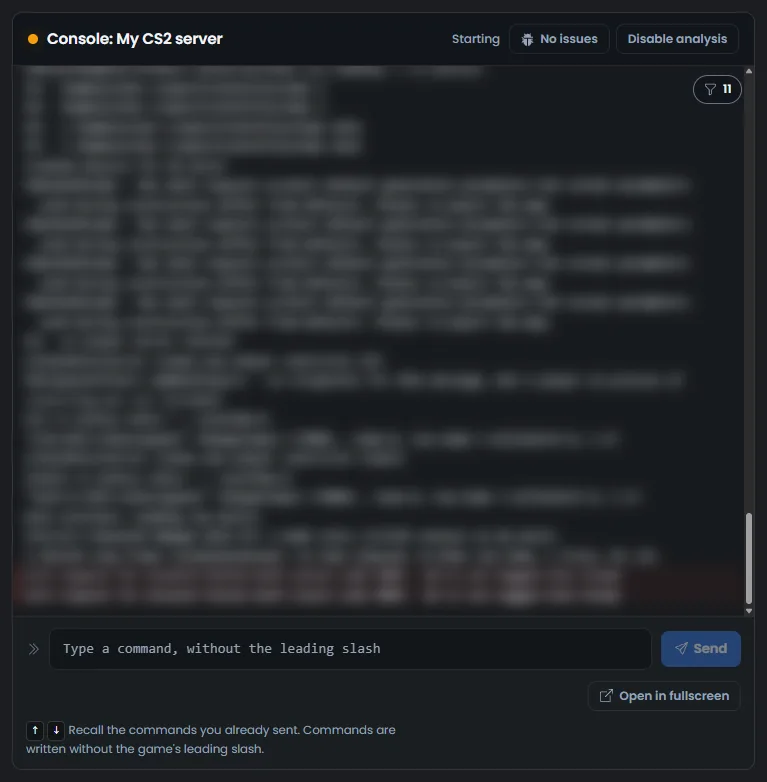
OuiPanel shows Running as soon as the game has connected to Steam. As long as the status stays on Starting, the server is not connected to Steam. This is what happens without your own token. We checked it on a test server.
With a valid token, the status should change to Running right after the connection to Steam. We have not yet run this test with a real token.
At startup, the console shows your GSLT. Never share a screenshot of the console without hiding it.
Set up the server in the variables
The settings are in Configuration › Server Settings, in the Environment Variables block. For a field, type the value, then click the check mark on its right. For a switch or a list, your choice is saved right away.
| Variable | Role |
|---|---|
| Map | Map loaded at startup, de_dust2 on delivery. Type the exact name of a map, without extension, for example de_mirage. Only letters, digits, _ and - are accepted |
| Game type | List of three game types, Classic (0) on delivery. It goes with the game mode, see the next table |
| Game mode | List of three modes, Competitive (1) on delivery |
| Maximum players | Number of players connected at the same time, from 1 to 64. The delivered value is 12 |
| Server name | Name shown to players, "Serveur CS2 OuiHeberg" on delivery. It has 64 characters at most, with no straight double quote and no semicolon |
| Server password | Empty on delivery. According to the panel's help text, players type it to join the server. We have not yet tried it with a player |
| Automatic update | Updates the game through Steam at every start. Enabled on delivery, and best left that way |
| Enable VAC | VAC, Valve's anti-cheat, enabled on delivery. It only works when the server is connected to Steam |
| Enable RCON | Disabled on delivery. RCON is then really closed, we checked it. The OuiPanel console does not need it |
| RCON password | Generated when the server is created. It is only used by external RCON tools, when Enable RCON is enabled |
| Steam game server login token (GSLT) | Your Steam token, 32 letters and digits. See the section on the GSLT |
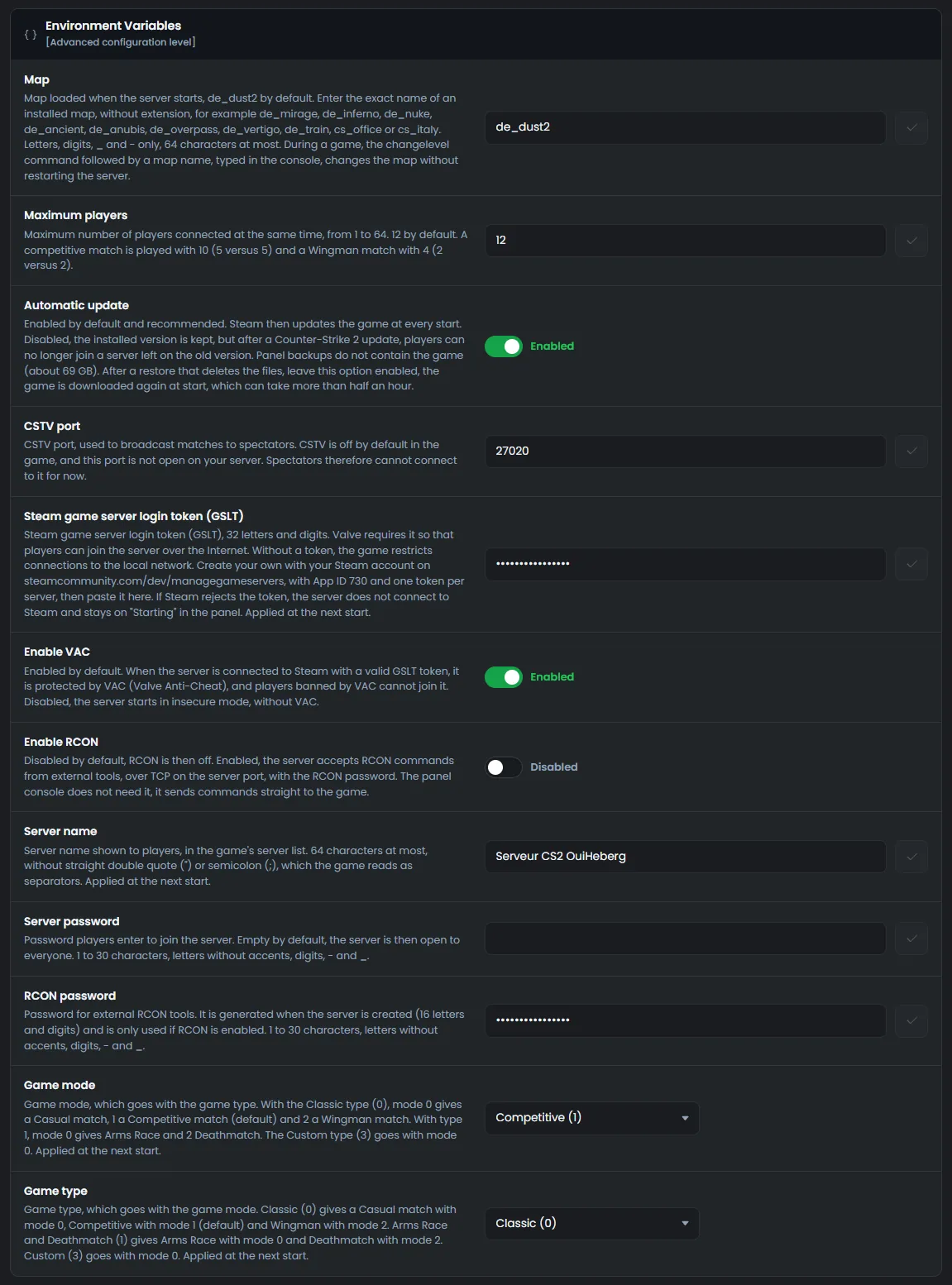
OuiPanel passes these values to the game at every start. So restart the server after a change.
The game type and game mode are set together. Here is the pair to set for each kind of match.
| Match | Game type | Game mode |
|---|---|---|
| Competitive, 5 against 5 | Classic (0) | Competitive (1) |
| Wingman, 2 against 2 | Classic (0) | Wingman, Deathmatch (2) |
| Casual | Classic (0) | Casual, Arms Race, Custom (0) |
| Deathmatch | Arms Race and Deathmatch (1) | Wingman, Deathmatch (2) |
| Arms Race | Arms Race and Deathmatch (1) | Casual, Arms Race, Custom (0) |
| Custom | Custom (3) | Casual, Arms Race, Custom (0) |
So the delivered pair gives a competitive match.
Change the map without a restart
The OuiPanel Console sends your commands straight to the game. To change the map during a match, type changelevel followed by the map name, then press Enter.
changelevel de_mirageWe checked this command on a test server. At the next start, the server goes back to the map of the Map variable.
How to join a CS2 server?
Each player needs Counter-Strike 2 on Steam, on a PC. The game is free.
Once the server is connected to Steam, players should be able to join it from the game console. The address and port are in the Global View, under Main address.
In Counter-Strike 2, enable the developer console in the game settings.
Open the console, then type
connectfollowed by the address and port.
connect 203.0.113.10:27015
The server should also show up under its name in the community server list. We have not yet tried these connections with a player.
Without a connection to Steam, the server does not show up in the Steam server list. We checked it on a test server.
Back up your server
Open the Backups tab.
Click Create backup.
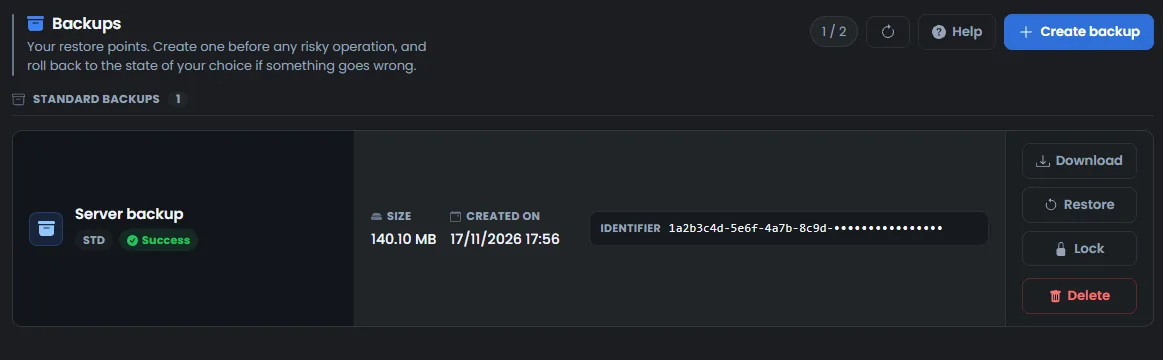
The backup does not contain the game, which comes from Steam. It keeps your files, such as the settings in the game/csgo/cfg folder. On our test server, a backup weighed about 140 MB, for a game of about 69 GB. The number of backups depends on your plan.
Stop the server cleanly
In the Console, click Stop.
The status changes to Stopping, then to Offline. Stopping only takes a moment.
Stop sends the game its quit command, and the server closes cleanly. The button also works when the status has stayed on Starting. We checked it on a test server, at every stop.
Keep Force stop for a server that no longer responds. This button cuts the server off at once.
If the server does not behave as expected
| Symptom | Solution |
|---|---|
| The server stays on Starting | It is not connected to Steam. Paste your own token into Steam game server login token (GSLT), stop the server, then start it again |
| The Restart button is greyed out | It is greyed out while the status is Starting. Click Stop, wait for Offline, then click Start |
| The server does not show up in the Steam list | Same cause. Without a valid token, the server stays off Steam |
| The new server name is refused | It contains a straight double quote or a semicolon, or is longer than 64 characters. Remove these signs or shorten it |
| The map is refused | The name may only contain letters, digits, _ and -, without extension |
| An external RCON tool cannot connect | Enable RCON is disabled on delivery. Enable it, then restart the server |
Need help?
Open a ticket from Tickets › Open a Ticket, or from the Contact support tile at the bottom of your server's page in the client area. You can also ask your question on the OuiHeberg Discord.
CS2 server hosting from $5.78/mo, on Valve's native Linux dedicated server with 4 GB of RAM and 90 GB of NVMe storage or more, SFTP access, backups and DDoS protection included.
View plans →