
 Client area
How to set up an Abiotic Factor dedicated server
To set up an Abiotic Factor server with OuiHeberg, order a plan, then start the server in OuiPanel, the OuiHeberg game panel. The studio's server software installs itself, with no Steam account. Your settings and your two passwords are then in the panel's variables.
This guide starts from a server you have already ordered and follows each step, from the install to the stop. If you are looking for Abiotic Factor server hosting, our plans are listed on our sales page.
Host it yourself or rent an Abiotic Factor server?
Deep Field Games publishes the Abiotic Factor server software for free. It downloads with SteamCMD, without owning the game. So you can run it on your own machine.
In that case, the server is only open while the machine stays on. You also have to open its ports on your home router.
With OuiHeberg, the server runs on a machine that stays online day and night, with anti-DDoS and backups.
Order and install the server
After payment, the server is created, then it installs itself. The install downloads the game with SteamCMD, Valve's tool, through an anonymous login. You do not need any Steam account for this step.
Wait for the install to finish before you start the server.
Start the server
Log in to OuiPanel at dash.ouipanel.com and open your Abiotic Factor server.
Open the Console, then click Start.
The state switches to Starting, then to Running as soon as the world is loaded.
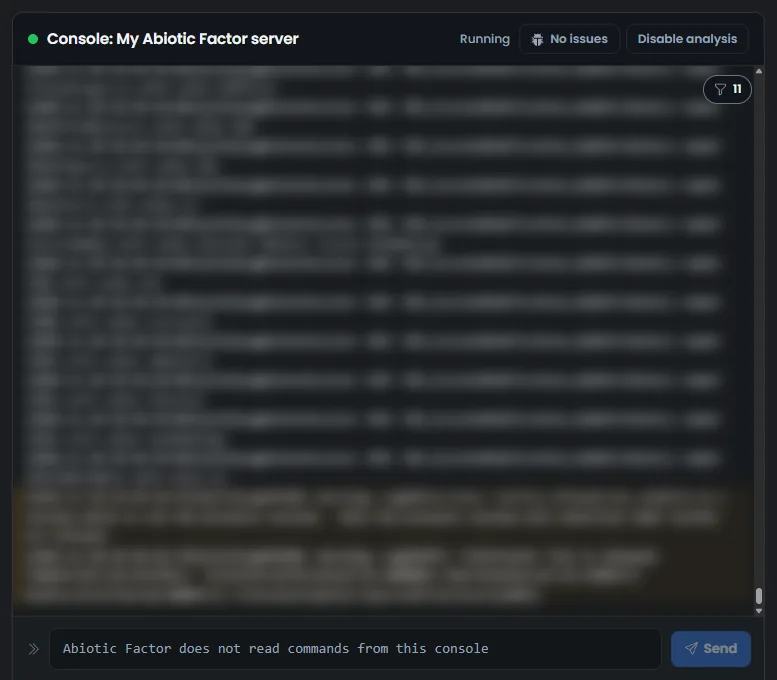
The console shows the server log. The game, however, does not read commands typed in the console. All settings therefore go through the variables.
Set up the server in the variables
The settings are in Configuration › Server Settings, in the Environment Variables block. For a field, type the value, then click the check mark on its right. For a switch or a list, your choice is saved right away.
| Variable | Role |
|---|---|
| Server name | Name shown in the Steam server list, “Serveur Abiotic Factor OuiHeberg” when delivered. It has 64 characters at most, with no straight double quote and no backslash |
| Server password | Generated when the server is created, 16 letters and digits. You change it here, with 4 to 30 unaccented letters or digits |
| Admin password | Also generated when the server is created, and different from the server password. You change it here, with 8 to 32 unaccented letters, digits or signs _ . @ + - |
| Maximum players | Number of players connected at the same time, from 1 to 24. The delivered value is 6, the number the studio recommends |
| World name | Name of the world folder, Cascade when delivered. This is the world the server loads again at every start. Only unaccented letters, digits, - and _ are accepted, 32 at most |
| Accepted platforms | List of four choices, All platforms when delivered. See below for console players |
| Mod IDs | mod.io IDs of the mods to load, separated by semicolons. Empty when delivered. See the guide How to install mods on an Abiotic Factor server |
| Automatic update | Enabled when delivered, keep it that way. The game should then be updated by Steam at every start |
| Query port | Steam query port, assigned with the server. It is used by the Steam server list and cannot be changed |
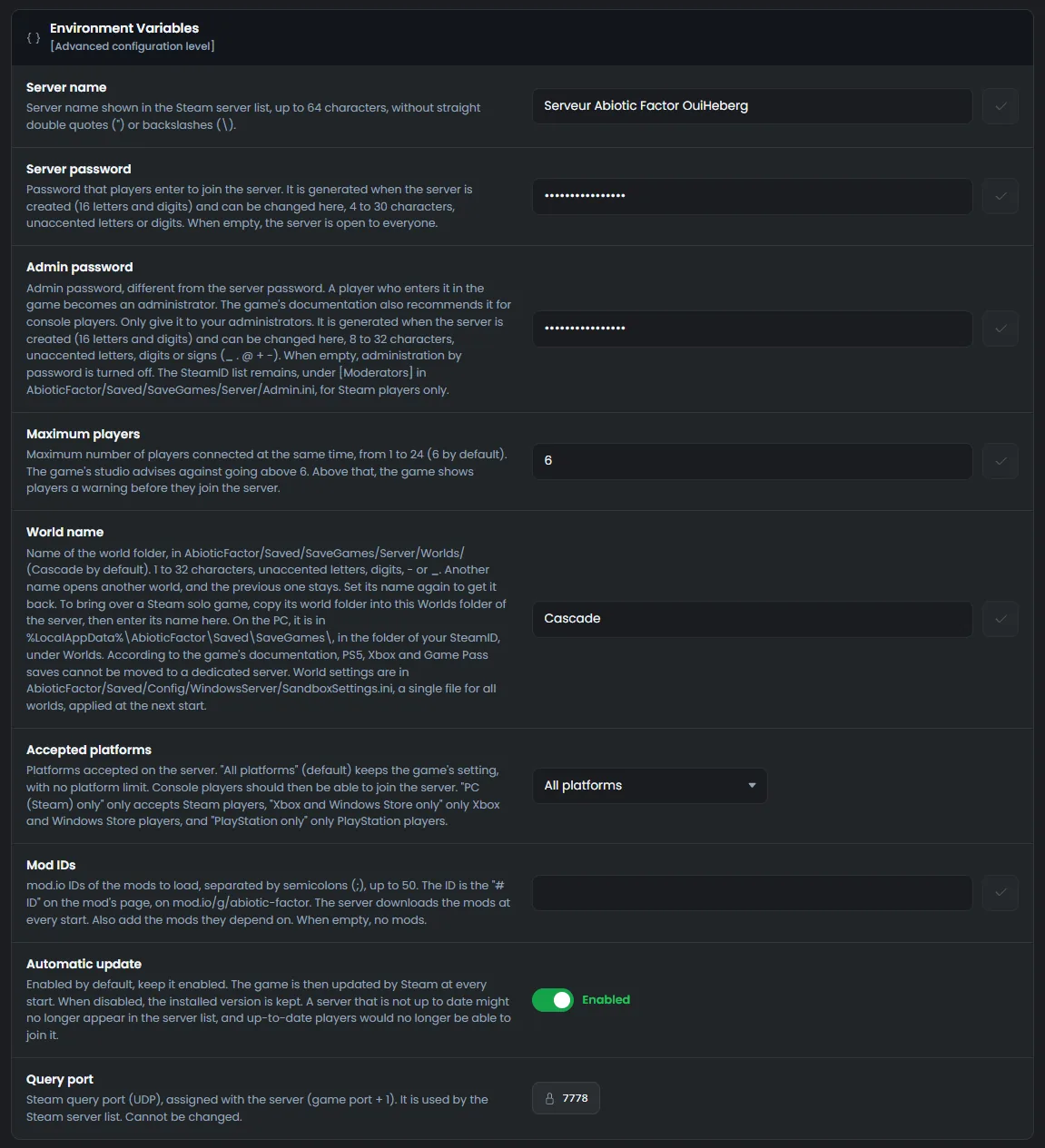
OuiPanel passes these values to the game at every start. A change therefore applies at the next start.
Keep Automatic update enabled. According to the panel's help, a server that is not up to date might no longer appear in the server list.
Find and change the passwords
The server has two passwords, generated when it is created and different from each other. You read them in the Server password and Admin password variables, and you change them in the same place.
According to the panel's help, players should enter the server password to join. Left empty, the server would be open to everyone. According to the studio, a player who enters the admin password in the game becomes an admin. We have not tried these two passwords with a player yet.
Only give the admin password to your admins.
How do you join an Abiotic Factor server?
Each player needs Abiotic Factor. The server shows up in the Steam server list, with its address. We saw this on a test server.
Players should find the server by its name in the game's server list. They should also be able to join through the game's direct connection, with the address and port shown in the Global View, under Main address.

We have not tried these connections with a player yet.
According to the studio, PS5 and Xbox players should be able to join the server when Accepted platforms is set to All platforms. The PC (Steam) only, Xbox and Windows Store only and PlayStation only choices would keep the server for those players only. We have not tried it with a console yet.
Back up your server
First click Stop, then wait for the Offline state.
Open the Backups tab, then click Create backup.
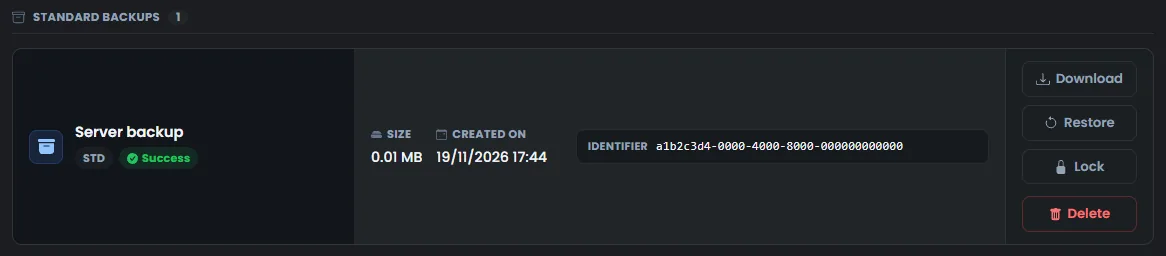
The game only writes the world to disk through its autosave. A backup made after the stop therefore holds the world as it was at the stop.
The backup only keeps your worlds and your settings, not the game files. So it stays light. If the game files are missing, the server downloads them again at the start. The number of backups depends on your plan.
Stop the server without losing your world
Abiotic Factor does not save the world when it closes. It saves it through its autosave, and the first one happens about 5 minutes after the world loads. The stop from OuiPanel therefore waits for this autosave before it closes the game.
In the Console, click Stop.
The state switches to Stopping. The stop can take a few minutes, while the game saves the world.
Wait for the Offline state.
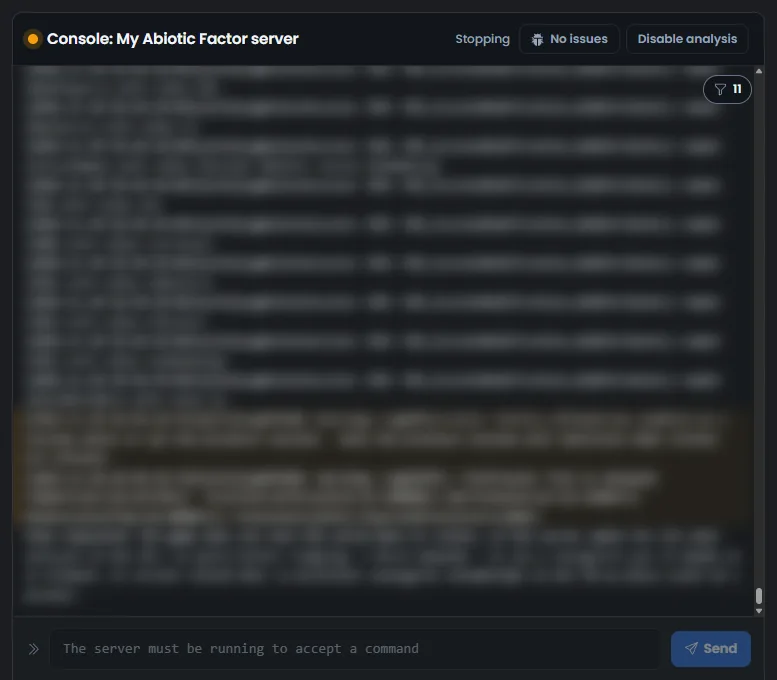
At the next start, the server loads the same world again. We saw this on a test server, at every stop. According to the panel's help, Restart also waits for this autosave.
If a player has connected since the start, the stop should wait for the next autosave in the same way. We have not tried it with a player yet.
Never use Force stop. This button cuts the game off without waiting for its save, and anything not saved yet is lost.
If the server does not behave as expected
| Symptom | Solution |
|---|---|
| The state stays on Stopping for a long time | This is normal. The stop waits for the game's autosave. Let it finish, without Force stop |
| A command typed in the console does nothing | The game does not read the console. Use the variables in Server Settings |
| A setting has no effect | It applies at the next start. Stop the server, wait for Offline, then click Start |
| The new server name is rejected | It contains a straight double quote or a backslash, or it is longer than 64 characters |
| A password is rejected | The server one accepts 4 to 30 unaccented letters or digits. The admin one accepts 8 to 32 characters, with the signs _ . @ + - as well |
| The world name is rejected | It may only contain unaccented letters, digits, - and _, 32 at most |
| The server no longer shows up in the Steam list | Check that Automatic update is enabled. A server that is not up to date might no longer show up there |
Need help?
Open a ticket from Tickets › Open a Ticket, or from the Contact support tile at the bottom of your server's page in the client area. You can also ask your question on the OuiHeberg Discord.
Abiotic Factor server hosting from $6.92/mo, on the Deep Field Games dedicated server with 6 GB of RAM or more, SFTP access, backups and DDoS protection included.
View plans →