
 Client area
How to make a TF2 dedicated server
To make a TF2 dedicated server with OuiHeberg, order a Team Fortress 2 plan or add the game to your OuiBox, then start it from OuiPanel, the OuiHeberg game panel. Valve's dedicated server installs on its own, with no Steam account. The Steam token, called a GSLT, is optional.
This guide follows each step, from installation to stopping the server. If you are looking for TF2 server hosting, our plans are listed on our sales page.
Host it yourself or rent a TF2 server?
Valve publishes the Team Fortress 2 dedicated server for free, for Windows and for Linux. So you can run it on your own machine.
In that case, the server is only open while the machine stays on. You also have to update it yourself whenever Valve releases a new version of the game.
At OuiHeberg, the server runs on Linux, on a machine that stays online day and night, with anti-DDoS and backups.
Order a Team Fortress 2 plan
After payment, the server is created, then it installs on its own. The installation downloads the game with SteamCMD, Valve's tool, through an anonymous login. You do not need any Steam account for this step.
The game takes about 15 GB once installed. On our test server, the installation took about a quarter of an hour. Wait for it to finish before you start the server.
Add a TF2 server to a OuiBox
A OuiBox groups several game servers under one plan. Allow at least 2 GB of memory and 20 GB of storage for a TF2 server.
In OuiPanel, open OuiBox in the side menu, then click New server.
In Game type, choose Team Fortress 2.
Fill in the Server name, choose the Location, then click Continue.
At the Resources step, set the memory, processor and storage, then click Continue.
At the Options step, check the summary, then click Create server.
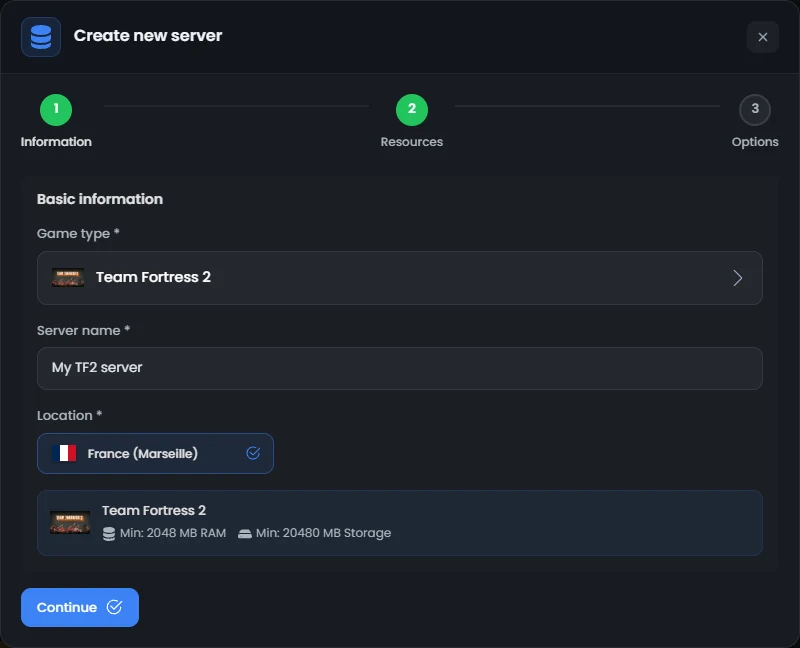
The form does not ask for a Steam token. The server then installs on its own, just like with a standalone plan.
Start the server
Log in to OuiPanel at dash.ouipanel.com and open your TF2 server.
Open the Console, then click Start.
The status changes to Starting. SteamCMD first checks that the game is up to date, and updates it if needed.
OuiPanel shows Running as soon as the game has connected to Steam. Without a token, the server connects to Steam with an anonymous account, and VAC, Valve's anti-cheat, is active. We checked it on our test server.
Set up the server in the variables
The settings are in Configuration › Server Settings, in the Environment Variables block. For a field, type the value, then click the check mark on its right. For a switch, your choice is saved right away.
| Variable | Role |
|---|---|
| Server name | Name shown to players, "Serveur TF2 OuiHeberg" on delivery. It has 64 characters at most, with no straight double quote and no semicolon |
| Map | Map loaded at startup, ctf_2fort on delivery. Type the exact name of a TF2 map, without extension, for example cp_dustbowl or pl_badwater. Only letters, digits, _ and - are accepted |
| Maximum players | Number of players connected at the same time, from 2 to 32. The delivered value is 24 |
| Server password | Empty on delivery. According to its description, players must provide it to join the server. It accepts letters, digits, - and _, up to 30 characters. We have not yet tried it with a player |
| RCON password | Generated when the server is created. It is only used by external RCON tools, see the section on RCON |
| Steam game server login token (GSLT) | Empty on delivery, and optional. See the section on the GSLT |
| Automatic update | Updates the game through Steam at every start. Enabled on delivery, and best left that way |
| Enable RCON | Disabled on delivery. The OuiPanel console does not need it |
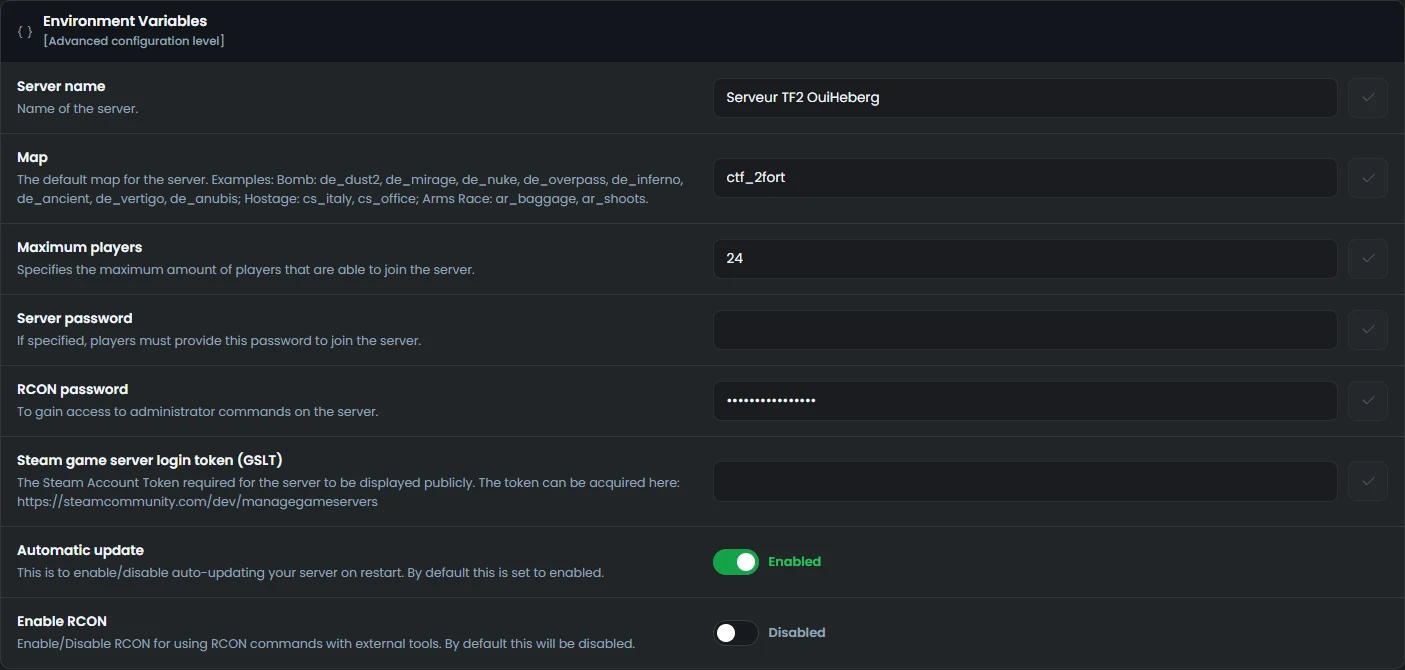
OuiPanel passes these values to the game at every start. So restart the server after a change.
Add settings to server.cfg
The tf/cfg/server.cfg file holds the match settings. The server reads it again at every map change, and the console shows it with the line "Executing dedicated server config file server.cfg".
Open the File Manager, then the
tfandcfgfolders.Click
server.cfgto open it.Add your settings below the existing lines, one command per line.
Click Save.
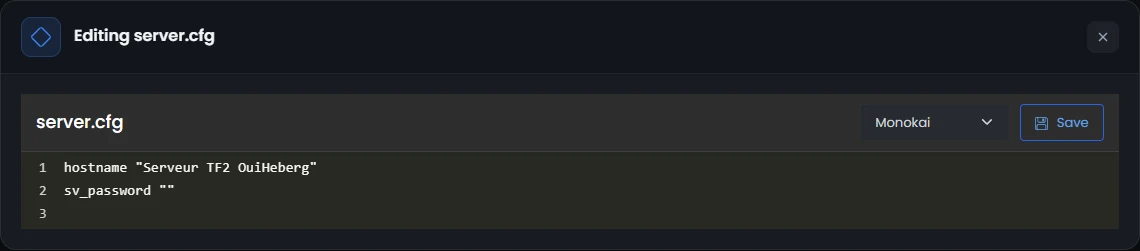
The hostname and sv_password lines are rewritten at every start, from the Server name and Server password variables. So change them in the variables, not in the file.
For example, the following line limits each map to 30 minutes.
mp_timelimit 30Change the map without a restart
The OuiPanel Console sends your commands straight to the game. To change the map during a match, type changelevel followed by the map name, then press Enter.
changelevel cp_dustbowl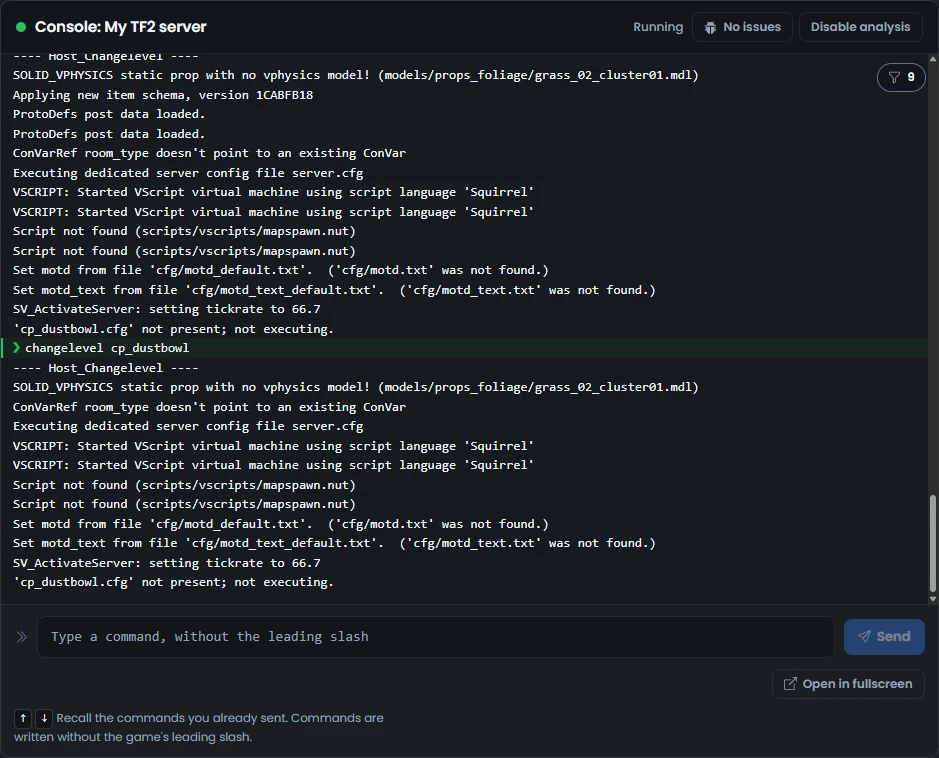
We checked this command on our test server. At the next start, the server goes back to the map of the Map variable.
Use RCON with an external tool
RCON lets you send commands to the server from a tool installed on your computer. The OuiPanel console works without RCON.
In Configuration › Server Settings, turn on the Enable RCON switch.
Write down the RCON password. You can also replace it with your own, using letters, digits,
-and_.Restart the server.
In your RCON tool, enter the server address and port, then the RCON password.
RCON uses the same port as the game. As long as Enable RCON is disabled, the server refuses any RCON connection, even with the right password. We checked it on our test server.
The RCON password gives full control of the server. Only share it with admins you trust, and never publish it.
Add a GSLT if you want one
The GSLT links your server to your Steam account. It is free and optional. Without it, the server starts and connects to Steam with an anonymous account.
You paste the token into the Steam game server login token (GSLT) variable. The guide How to create a GSLT for a TF2 server covers each step, from the Steam account requirements to where you paste the token.
How to join a TF2 server?
Each player needs Team Fortress 2 on Steam, on a PC. The game is free.
The server address and port are in the Global View, under Main address.
In Team Fortress 2, enable the developer console in the game options.
Open the console, then type
connectfollowed by the address and port.
connect 203.0.113.10:27015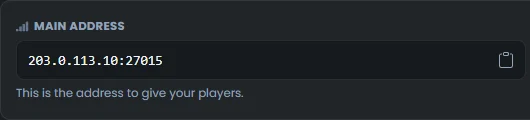
Replace the example address with your server's. We have not yet tried this connection with a player.
Stop the server cleanly
In the Console, click Stop.
The status changes to Stopping, then to Offline. Stopping only takes a moment.
Stop sends the game its quit command, and the server closes cleanly. We checked it on our test server.
Keep Force stop for a server that no longer responds. This button cuts the server off at once.
If the server does not behave as expected
| Symptom | Solution |
|---|---|
| The new server name is refused | It contains a straight double quote or a semicolon, or is longer than 64 characters. Remove these signs or shorten it |
| The map is refused | The name may only contain letters, digits, _ and -, without extension |
The name or password changed in server.cfg comes back | These two lines are rewritten at every start. Change them in the variables |
| An external RCON tool cannot connect | Enable RCON is disabled on delivery. Enable it, then restart the server |
| The console shows "Assertion Failed" when stopping | These messages come from the game's Steam client. On our test server, they appear at every stop and do not affect it |
| Valve has just released a TF2 update | Restart the server. With Automatic update enabled, the game updates at startup |
Need help?
Open a ticket from Tickets › Open a Ticket, or from the Contact support tile at the bottom of your server's page in the client area. You can also ask your question on the OuiHeberg Discord.
TF2 server hosting from $2.30/mo, on Valve's dedicated server with 2 GB of RAM and 30 GB of NVMe storage or more, SFTP access, backups and DDoS protection included.
View plans →